Receive Alerts on Unlimited Devices: Setup for Users and Developers

Yes, you can receive and send alerts to multiple devices, and in practice there are only two patterns for doing it: fan out the same alert to every enrolled device, or route it to whichever device is active and sync the dismissal. For everyday users, sign in to the same account everywhere and check each device’s notification settings. For developers, register one push token per device and send a message to each token rather than trying to mirror a single notification across hardware.
TL;DR:
- Fan-out ensures alerts are delivered to all devices, which is critical for high-severity notifications like security alerts or trading signals.
- Active-device routing targets the device in use, reducing duplicate pings but risking missed alerts if the user isn’t on the primary device.
- Cross-device notification synchronization varies: Apple favors iCloud-based message forwarding, while Android relies on account sign-in and nearby device detection, with device-specific setup needed.
- Proper setup requires signing into the same account on all devices, adjusting per-app notification permissions, and managing background restrictions to ensure alerts arrive reliably.
- Developers must register individual push tokens per device and send separate notifications, monitoring receipts and handling token lifecycle changes for accurate multi-device delivery.
Table of Contents
- How multi-device notification systems differ: delivery vs synchronization
- Android step-by-step: enable or restrict notifications across devices
- Apple step-by-step: Messages, Watch routing, and device controls
- How to implement reliable multi-device alerts for developers
- Step-by-step troubleshooting checklist for missing or unwanted alerts
- Practical policy checklist for choosing fan-out vs active routing
- Publisher resources for multi-device trading alert setups
- Author perspective on getting this right
- Get trading alerts on every device you use
- FAQ
- Sources
How multi-device notification systems differ: delivery vs synchronization
Most confusion about alerts to multiple devices comes from mixing up two separate ideas: delivery and synchronization. Delivery, often called fan-out, means the same alert gets pushed to every device tied to an account at roughly the same time. Synchronization means devices share state, so dismissing an alert on your phone clears it from your tablet too, even if only one device actually displayed it.
The two major mobile platforms lean in different directions. According to Apple Support, Apple Watch and iPhone routing typically sends a notification to one device or the other based on which one is active, not both at once, though dismissal on one side often clears the badge on the other. Android’s cross-device services can mirror certain notifications across devices signed into the same Google Account, but the experience varies by manufacturer and device model, and nothing guarantees identical alerts on every screen.
- Fan-out favors reach: every device gets the alert, useful when missing one is costly.
- Active-device routing favors quiet: only the device in use lights up, reducing duplicate pings.
- Synchronized dismissal can pair with either pattern to keep devices in a consistent state.
Choosing between them depends on what the alert is for. A trading signal or a security alarm belongs in the fan-out camp, since a missed alert has a real cost. A routine calendar reminder or a social notification fits active routing better, since getting it five times across five screens just creates noise.
Pro Tip: If you’re unsure which pattern your app uses, dismiss a notification on one device and watch whether it disappears on the others within a few seconds. That tells you whether you’re dealing with synchronization or independent delivery.
Android step-by-step: enable or restrict notifications across devices
Android handles multi-device notifications through a mix of account-level sign-in and device-specific settings, and getting alerts onto more than one Android device usually takes a few minutes of setup.
- Sign in to the same Google Account on every destination device, since cross-device features require a shared account to detect nearby hardware, as described in Android’s notification controls.
- Open Settings, then Notifications, then App notifications, and confirm the app you care about is allowed to send alerts on that specific device.
- Check Notification History if your device supports it, since this log shows what was actually delivered and helps confirm whether an alert reached the device at all.
- Adjust per-app categories (for example, splitting “price alerts” from “account updates”) so you can mute one category without losing the others.
- To stop alerts on a single device without signing out everywhere, disable notifications for that app in that device’s settings rather than touching the account itself.
Android’s cross-device services documentation notes that some features, like Auto Hotspot sharing, are unavailable on certain manufacturers’ phones, including Samsung devices. That same manufacturer variability applies to notification mirroring, so what works on one Android phone may behave differently on another even with identical settings.
One linked statistic from Android’s own documentation: cross-device services require at least one shared Google Account and nearby device detection to function, as stated in Android Help. That single requirement explains most “why isn’t this syncing” complaints.
If alerts still aren’t arriving after checking account sign-in and notification permissions, the next suspect is background restrictions. Some Android devices aggressively kill background processes to save battery, which can silently block push delivery even when every visible setting looks correct.
Apple step-by-step: Messages, Watch routing, and device controls
Apple’s ecosystem handles alerts to multiple devices mostly through iCloud synchronization rather than true fan-out, which means setup looks different from Android.
- Open Settings, tap your name, go to iCloud, then Show All, and turn on Messages in iCloud so your conversation history and new texts sync across iPhone, iPad, and Mac signed into the same Apple Account.
- Separately enable Text Message Forwarding (found in Settings under Messages) on each additional device you want to receive SMS and MMS texts, since this is a distinct setting from Messages in iCloud.
- On Apple Watch, check the Mirror my iPhone or Custom notification settings, since these determine whether an alert goes to the watch, the phone, or follows whichever device is unlocked and active, per Apple’s notification guidance.
- To stop a specific device from receiving alerts, sign out of Messages on that device or turn off Text Message Forwarding for it, rather than disabling your Apple Account entirely.
Two-factor authentication and iCloud Keychain both need to be active for Messages in iCloud to sync reliably, and Apple’s setup guide notes that Share Across Devices settings also interact with Focus modes, meaning a Focus active on one device can suppress alerts you expected elsewhere. Dismissing an alert on your Apple Watch generally clears it from your iPhone’s lock screen, but the reverse timing can lag slightly if iCloud sync hasn’t finished propagating.
Pro Tip: If a new device isn’t receiving forwarded texts, wait a few minutes for iCloud sync to complete before assuming the setting is broken. Forwarding often takes longer to activate than Messages in iCloud itself.
How to implement reliable multi-device alerts for developers
Sending alerts to multiple devices from a backend system comes down to one principle: treat every device as its own destination with its own token, and never assume a single send reaches everything a user owns.
- Register one push token per physical device and store it server-side, tied to the user’s account, since a token is specific to a device and app installation, not to a person.
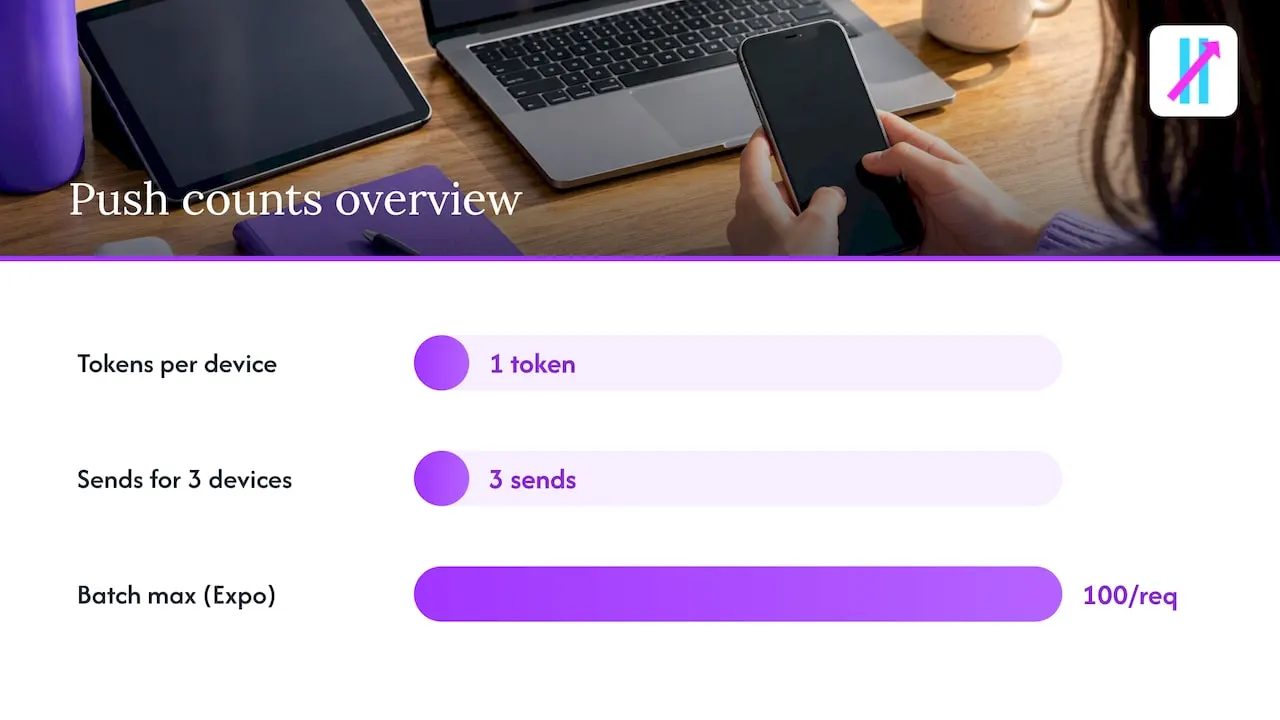
- Send one message per token rather than trying to broadcast a single payload, which means a user with three devices generates three separate sends for the same event.
- Batch requests where your provider supports it. Expo’s push documentation allows up to 100 message objects per API request, which cuts overhead compared to sending them one at a time.
- Check push receipts after sending, since a receipt status of “ok” only confirms the push service accepted the handoff, not that the device displayed anything.
- Watch for permanent errors like DeviceNotRegistered in receipts and remove those tokens immediately, since retrying them wastes requests and can flag your sending account for abuse.
A receipt status of “ok” means the push service accepted the notification, but the device may still not show it if it was offline; receipts are necessary but not sufficient evidence of end-device delivery. Expo push notifications documentation
That distinction matters more than most implementation guides admit. A successful handoff to Apple Push Notification service or Firebase Cloud Messaging is not the same as a user actually seeing the alert. Devices can be offline, out of storage, or have notifications disabled at the OS level, and none of that shows up as an error on your end unless you’re specifically checking receipts.
Token lifecycle management is the other half of the job. Tokens change when a user reinstalls an app, resets their device, or sometimes after an OS update, so a token that worked last month can silently fail today. Build your system to re-register tokens on app launch rather than assuming a token captured once stays valid forever. Pair that with retry logic that uses backoff rather than immediate resending, since hammering a dead token doesn’t make it work and can slow down delivery to devices that are actually online.
For rate-sensitive integrations, such as pushing frequent trading or market alerts to a channel, a developer discussion of rate limits and queueing is a useful reference for pacing high-volume sends without triggering provider throttling.
Step-by-step troubleshooting checklist for missing or unwanted alerts
When an alert doesn’t show up, or shows up on devices you didn’t want, work through the checks in order rather than guessing. Ring’s support guidance on managing alerts points to the same root causes that apply across most platforms.
- Confirm the app has notification permission on the specific device, since OS-level permission is separate from being logged in.
- Check app-level notification categories, since many apps let you mute one alert type while keeping others active, and a muted category looks identical to a broken one.
- Check Focus or Do Not Disturb settings on the device, since these can silently suppress alerts that the app sent correctly.
- Verify account and device enrollment, confirming the device is actually signed into the right account and hasn’t been removed from the list of trusted devices.
- On the sending side, check push receipts or server logs to confirm the message was actually dispatched and accepted.
To stop alerts on one device without losing your account elsewhere, use the app’s own settings, or for Apple Messages specifically, sign out of Messages or disable Text Message Forwarding on that device rather than removing the account entirely.
To verify delivery, check the device’s own Notification Center or Notification History, and cross-reference it against sender-side push receipts or server logs. If both sides agree the alert never got delivered, that points to a platform or network issue rather than a settings mistake, and it’s time to escalate to app support or the device vendor with timestamps, screenshots, and any error codes from your logs.
Practical policy checklist for choosing fan-out vs active routing
Product owners deciding how to handle alerts to multiple devices have three realistic options, and each comes with a tradeoff.
- Always fan-out: every device gets every alert, which maximizes reach but risks notification fatigue if users own several devices.
- Active-endpoint routing with critical fan-out: routine alerts go to one device, but high-severity events override that and hit every device.
- Synchronized dismissal layered on either pattern: devices share read/unread state, reducing the annoyance of clearing the same alert multiple times.
A patent filing on conditional notification propagation makes a point worth borrowing even outside its legal context: systems should define a policy per event type rather than applying one blanket rule to every alert.
Minimum controls worth exposing to users include per-device enable and disable switches, category-level toggles, an opt-in for critical alerts that bypass Focus or Do Not Disturb, and clear interaction with quiet hours. On the privacy side, avoid exposing a user’s full device list to other users, throttle duplicate sends within short windows, and give people a granular way to unsubscribe from one alert type without killing all notifications.
Pro Tip: If you only build one feature for multi-device alerts, build the critical-alert override. It solves the worst failure mode, a missed urgent alert, without forcing every notification into fan-out mode.
Publisher resources for multi-device trading alert setups
For traders specifically, getting alerts to multiple devices reliably is less about OS settings and more about how the alert source is configured in the first place.
- Our guide to keeping TradingView synced across devices walks through account sign-in and alert propagation so indicator signals appear consistently on phones, tablets, and desktops.
- Our instructions for setting up TradingView indicator alerts cover the alert creation steps that have to be right before any device-level troubleshooting matters.
- Our walkthrough on sending TradingView alerts to Telegram shows how to route signals to a channel endpoint instead of relying only on device push notifications.
Our proprietary TradingView indicator supports unlimited devices, so a signal generated once can reach every device tied to your setup without extra per-device licensing. AUTO Mode keeps setup minimal for traders who want signals without deep configuration, while Manual Mode offers more control over how and where alerts fire. The built-in Fake Trend Detector filters out low-quality market conditions before an alert goes out, which matters for multi-device setups since a fan-out alert sent to multiple devices can be more disruptive when it is noise rather than signal.
Author perspective on getting this right
My take: fan-out is worth the noise for anything high-severity, and trading alerts qualify. A missed signal because your phone was in active-routing mode and your tablet stayed quiet can cost real money, so redundancy earns its keep there. Pair fan-out with deduplication so five devices don’t mean five separate interruptions for the same event.
For everyday notifications, active routing is the better default. Nobody needs a calendar reminder buzzing on four screens at once. If you want this balance built into your trading setup without configuring it yourself, our TradingView sync guide is the fastest path there.
— Steven Hartwell
Get trading alerts on every device you use
We built Big Move Algo around a simple idea: a trading signal should reach you wherever you are, not just on the one device you happened to have open. Our indicator supports unlimited devices at no extra cost, so the same Long, Short, or Exit signal can land on your phone, tablet, and desktop at once. AUTO Mode gets you running with minimal setup, and the Fake Trend Detector filters out low-quality conditions before a signal ever reaches you, so a multi-device alert means something worth acting on rather than extra noise.
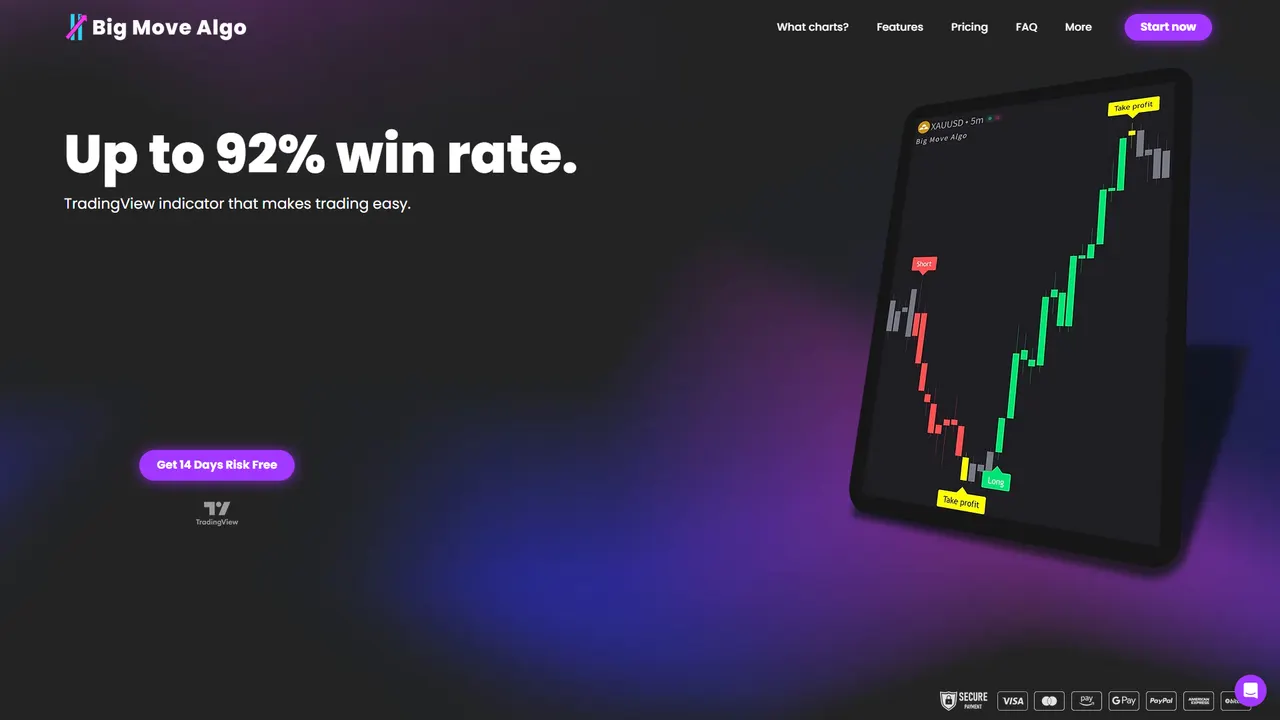
- Unlimited device support built into every plan, with no separate device fees.
- AUTO Mode for fast setup, Manual Mode for traders who want more control.
- Fake Trend Detector reduces alerts sent on weak or misleading market conditions.
If you trade crypto, forex, stocks, indices, or commodities and want signals that follow you across every screen, check our plans and pricing to find the version that fits how you trade.
FAQ
How do I get notifications from one phone on another phone?
On Android, sign in to the same Google Account on both phones and check that cross-device services are enabled, since mirroring depends on account sign-in and nearby device detection. On Apple devices, SMS and MMS text forwarding requires enabling Text Message Forwarding separately on each destination device through Apple’s notification settings.
How do I stop notifications across multiple devices?
Disable the app’s notifications on the specific device you want to quiet, rather than touching account-wide settings, since that leaves other devices unaffected. For Apple Messages, turning off Text Message Forwarding or signing out of Messages on one device stops that device alone from receiving texts, per Apple’s setup guidance.
How do I check notifications on another device?
Open that device’s Notification Center or, on supported Android phones, its Notification History to see what was actually delivered, as described in Android’s notification controls. If the alert never appears there, the next step is checking app permissions and Focus or Do Not Disturb settings on that specific device.
Can a Ring Alarm send alerts to two phones?
Yes, Ring’s app-level alert settings let multiple devices logged into shared access receive push, email, or text alerts, and Ring’s support documentation recommends checking those settings first if one phone isn’t receiving alerts the other one gets. Missing alerts on one device are usually a permissions or Focus setting issue rather than an account-wide problem.
Why didn’t I get an alert even though my account is set up correctly?
The most common causes are notification permissions turned off at the device level, an active Focus or Do Not Disturb mode, or on the developer side, a push token that’s gone stale after a reinstall. Checking push receipts on the sending side can confirm whether the alert was ever actually dispatched to that device.
Sources
- Control notifications on Android - Android Help
- How to get notifications on your iPhone and Apple Watch - Apple Support
- Sending notifications - Expo documentation
- Managing alerts for Ring Alarm