Traders: Use Bar Close TradingView Alerts to Avoid Repaint Losses

Yes, you can automate TradingView alerts into real orders, and you can do it safely by favoring bar-close confirmations, secure webhooks, and stepwise testing over raw speed. The essentials: a Pine Script alert or strategy, a secure webhook or automation agent, two-factor authentication, an execution agent or broker API, and a documented test plan before any live capital touches the system.
TL;DR:
- Using bar-close alerts reduces repainting risk, preventing premature triggers caused by intrabar data changes.
- Securing webhook endpoints with authentication and payload validation minimizes the chance of silent failures or data leaks.
- Testing each part of the automation chain independently, including alert firing, webhook delivery, and order execution, ensures reliability.
- Most automation issues stem from alert frequency limits or timeout errors, which require adjusting trigger logic and server response times.
- Reliability, security, and thorough testing are more important than raw speed when automating TradingView alerts into live trades.
Table of Contents
- Setup checklist: accounts, endpoints, and testing tools you need
- How TradingView alerts trigger: price, technical, and script signals
- Why you should favor “once per bar close” and other anti-repaint practices
- Configure webhook alerts and design secure JSON payloads
- End-to-end testing checklist: verify alert, webhook, execution, broker
- Fast fixes for common automation issues
- Publisher perspective: how Big Move Algo simplifies reliable alert automation
- What matters most when you automate TradingView alerts
- How Big Move Algo can speed setup: links to plans and setup docs
- FAQ
- Sources
- Authoritative links (TradingView docs and publisher setup guides)
Setup checklist: accounts, endpoints, and testing tools you need
Before you wire anything together, confirm you have the right pieces in place. Skipping this step is the most common reason automation projects stall halfway through.
- A TradingView account with a Pine Script-compatible script or strategy that generates alert conditions.
- An HTTPS webhook endpoint or desktop automation tool, along with a clear understanding of the payload format it expects.
- A broker API or execution agent, ideally connected to a paper or demo account for initial testing.
- Two-factor authentication enabled on your TradingView account, server-side token handling for any credentials, and a logging tool such as a request inspector or local tunnel to watch traffic in real time.
Once these are confirmed, the rest of the setup is mostly configuration and verification rather than guesswork.
How TradingView alerts trigger: price, technical, and script signals
TradingView alerts come from several sources, and knowing which one you’re using changes how you should automate it.
- Price alerts trigger on a specific level, like a cross above or below a value you set directly on the chart.
- Technical alerts fire from built-in indicators or drawing tools, created through the alert dialog without writing code.
- Script and strategy alerts come from custom Pine Script logic, using either
alert()calls inside an indicator or order-fill events inside astrategy, as described in TradingView’s Pine Script alert documentation. - Strategies can pass dynamic text through placeholders like
{{strategy.order.alert_message}}, letting one alert carry different messages depending on which order filled. - By default, strategies evaluate and fire on bar close rather than every tick, though
calc_on_every_tickand the alert’sfreqparameter can change that behavior.
For most automation setups, script and strategy alerts give you the most control because the message content and trigger timing both live inside code you can audit.
Why you should favor “once per bar close” and other anti-repaint practices
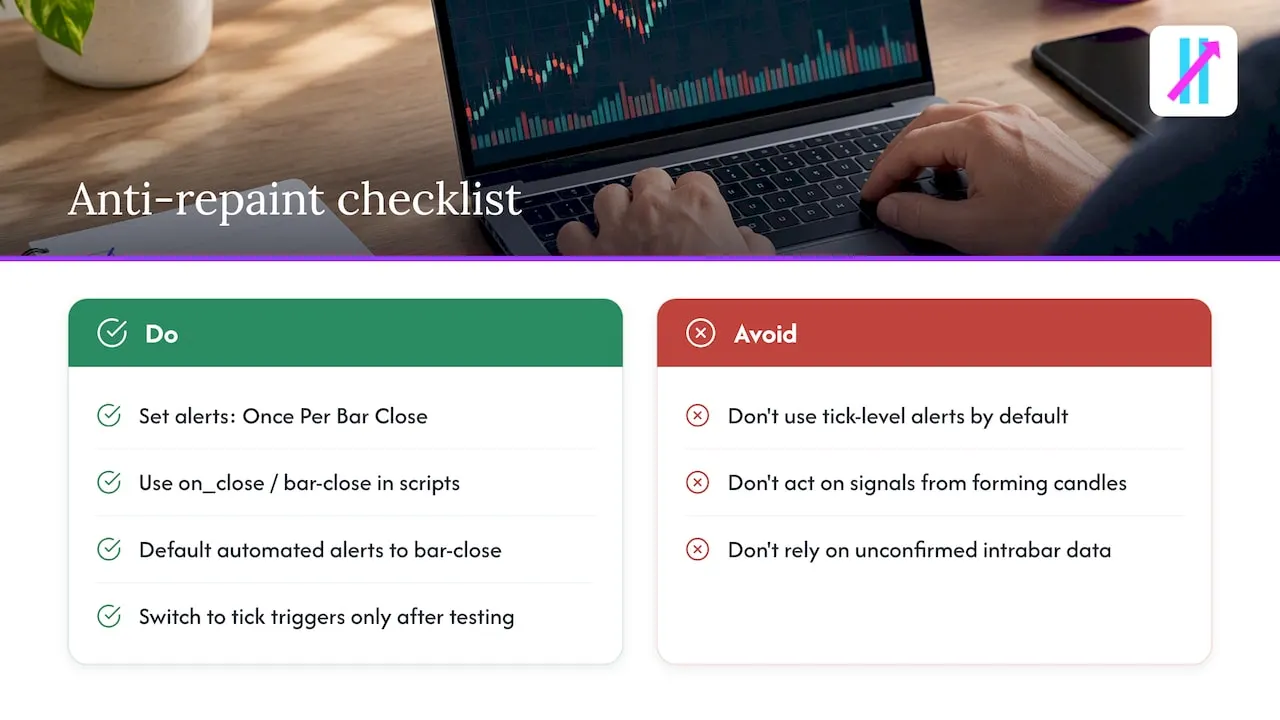
Repainting happens when a signal that appeared on a live, forming candle changes or disappears once the bar closes. It’s usually caused by intrabar recalculation, functions like request.security() pulling in unconfirmed data, or a script set to calc_on_every_tick. For an automated account, a signal that repaints can trigger an order based on a condition that no longer exists by the time the bar finishes.
Setting alerts to trigger Once Per Bar Close, or using alert.freq_once_per_bar_close in script, filters out those premature triggers and waits for a confirmed candle, as TradingView’s alert FAQ explains. The trade-off is a small delay between the actual market move and the alert firing. For most retail automation, that delay is worth it: a few seconds of lag costs far less than acting on a signal that reverses itself.
Pro Tip: Default every automated strategy alert to bar-close confirmation first, then only switch to tick-level triggers if you’ve specifically tested for repainting risk.
Configure webhook alerts and design secure JSON payloads
When you create an alert, the webhook URL field accepts a single HTTPS endpoint, and TradingView sends the alert message as JSON or plain text depending on how you format the message body. For automation, structure the message as JSON and include placeholders like {{strategy.order.alert_message}}, {{ticker}}, and {{close}} so your execution agent can parse the order details reliably rather than guessing from a plain-text string.
Security matters here more than almost anywhere else in the pipeline:
- TradingView requires two-factor authentication on your account before you can use webhook alerts, per TradingView’s webhook configuration guide.
- Never include API keys, passwords, or broker credentials in the webhook URL or payload body.
- Route the webhook to an authenticated server that validates a signature or token first, then let that protected server make the actual broker API call.
- Include a unique alert ID and timestamp in the payload so your system can detect duplicates and support safe retries.
TradingView enforces a short response timeout and only supports common ports, 80 and 443, on webhook endpoints, according to TradingView’s support documentation. If your server takes more than a few seconds to respond, the delivery can fail, which means your execution agent needs to acknowledge receipt quickly and process the order asynchronously.
End-to-end testing checklist: verify alert, webhook, execution, broker
A chart alert firing correctly tells you almost nothing about whether the rest of the chain works; for deeper context on data quality and reliability in automation, see the BacktestMarket blog. Each segment, alert, webhook, execution agent, and broker, needs to be tested on its own before you connect them for live trading.
- Trigger the alert manually or wait for a live signal, then capture the webhook delivery using a request inspector or local tunnel to confirm the payload arrived intact.
- Check that your execution agent parses the placeholders correctly and handles missing or empty fields without crashing.
- Route the parsed order to a demo or paper brokerage account and confirm the fill price, position size, and risk limits all match what you expected.
Add acknowledgements so your webhook responds immediately on receipt, with retry or queue logic and a dead-letter path for deliveries that fail repeatedly. A QuantVPS review of automated trading pipelines makes the same point: a successful manual trade proves nothing about whether the webhook-to-broker path actually works, so each link needs independent verification.
Pro Tip: Run the full chain in paper trading for at least a few trading sessions before switching to a funded account, and watch the logs, not just the fills.
Fast fixes for common automation issues
Most automation failures trace back to a short list of causes, and most of them are quick to diagnose.
- Alert stopped firing after repeated triggers: TradingView automatically stops an alert that fires more than 15 times in 3 minutes for a symbol, so reduce the symbol count or tighten your trigger logic, as described in TradingView’s alerts separation guide.
- Missing notifications: check the Alert manager, confirm mobile and desktop notification permissions, review email spam filters, and inspect webhook response logs for silent failures.
- Webhook errors: verify the content type is set to application/json, confirm the payload is valid, check the TLS certificate on your endpoint, and watch for timeout issues.
- False signals or repainting: switch the alert to bar-close triggering and audit the script for functions that pull unconfirmed, realtime-only values.
Publisher perspective: how Big Move Algo simplifies reliable alert automation
Big Move Algo approaches automation by producing clear Long, Short, and Exit signals rather than raw indicator noise, with AUTO Mode handling most of the setup and a Fake Trend Detector filtering out low-quality conditions before they reach your webhook. Readers building out a full pipeline can find setup walkthroughs and webhook payload examples on the Big Move Algo setup guide.
What matters most when you automate TradingView alerts
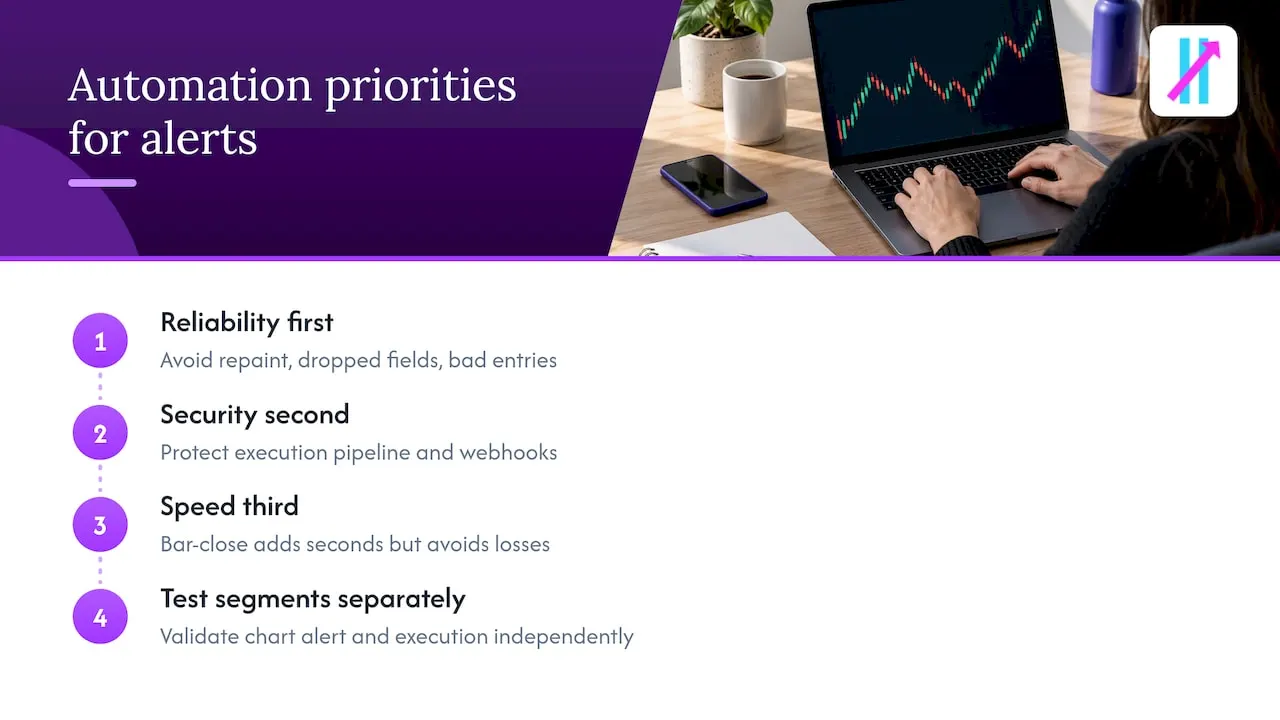
The conventional advice on this topic treats speed as the main variable worth optimizing: fastest webhook, fastest execution, fewest milliseconds of lag. That’s the wrong priority for almost everyone reading this. The actual failure point in most automated setups isn’t latency, it’s a signal that fires on an unconfirmed bar, a payload that silently drops a field, or a webhook that times out because the server took too long to acknowledge it.
Bar-close confirmation costs you a few seconds. A repainted signal that triggers a bad entry costs you the trade, and sometimes several more while you figure out what went wrong. The reader’s priority order should be reliability first, security second, speed a distant third. Test every segment of the chain independently before connecting them, because a working chart alert and a working execution pipeline are two completely different claims, and conflating them is how most home-built automation setups lose money quietly before anyone notices.
— Steven Hartwell
How Big Move Algo can speed setup: links to plans and setup docs
Building a reliable alert pipeline from scratch means writing your own signal logic, tuning it against repainting, and still deciding when a setup is actually worth trading. Big Move Algo skips the first two steps: the indicator generates Long, Short, and Exit signals directly, and AUTO Mode handles the configuration so you’re webhook-ready without writing Pine Script from zero.
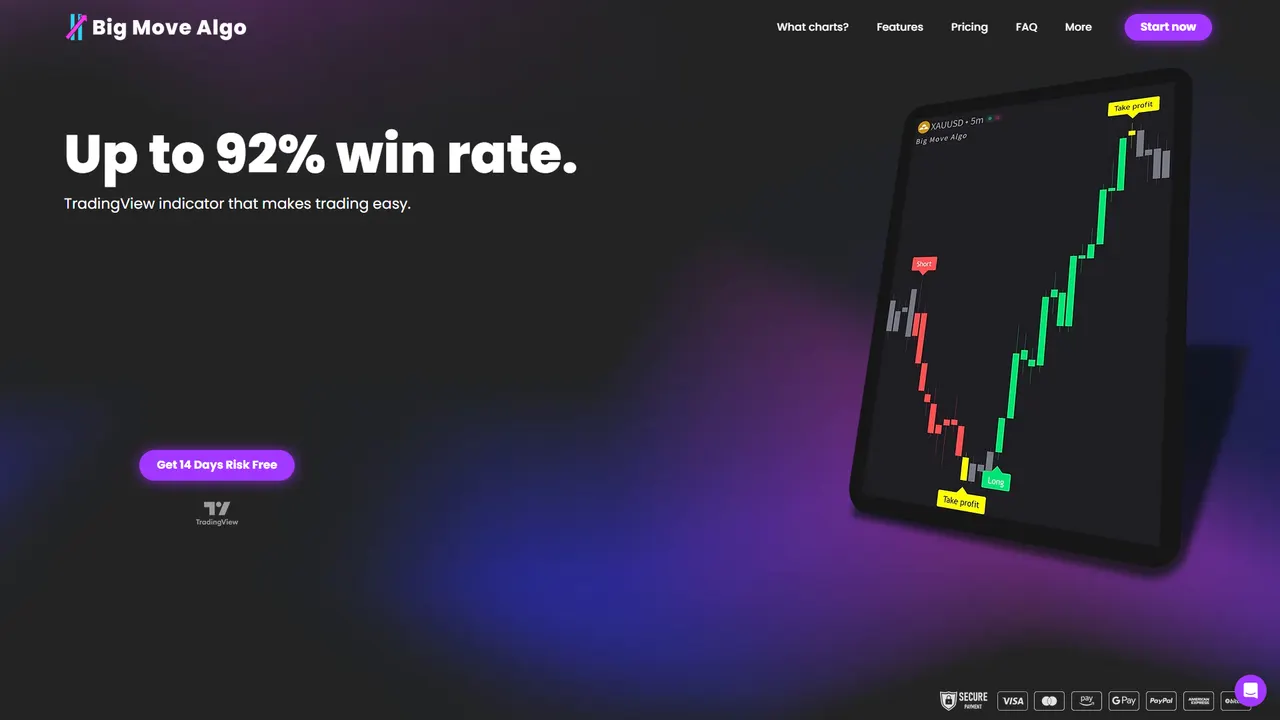
The indicator works across multiple markets, and runs on unlimited devices with free updates included. You can compare the Version 2, Version 3, and Version 3 Plus plans to find the setup that matches your trading style, and the account change guide walks through linking your TradingView account once you’ve subscribed.
This article is general information, not a substitute for advice from a qualified financial advisor. Consult a qualified financial professional about your own circumstances before acting on anything here.
FAQ
Can you set up alerts on TradingView?
Yes, TradingView lets you create alerts from price levels, built-in indicators, drawing tools, or custom Pine Script logic directly from the chart interface. Each alert type has its own trigger conditions and can send notifications by pop-up, email, or webhook.
Can I automate my trading with TradingView?
TradingView alerts can drive automated execution when connected to a webhook, which forwards the alert payload to an execution agent that places orders through a broker API. This requires two-factor authentication on your account and a securely configured endpoint, as outlined in TradingView’s webhook setup guide.
Why am I not receiving alert notifications on TradingView?
Missing notifications usually trace back to disabled mobile or desktop permissions, email filters catching the message, or an alert that stopped after triggering too often. Check the Alert manager for the alert’s status and review your TradingView notification settings to confirm delivery channels are active.
Can I set up free alerts on TradingView?
TradingView offers alerts on all plans, though the number of active alerts and trigger frequency you can run depends on your subscription tier. Paid plans like Premium and Ultimate allow significantly higher active alert allocations than free or entry-level tiers, as detailed in TradingView’s alert limits documentation.
Sources
Authoritative links (TradingView docs and publisher setup guides)
For the technical specifics behind everything covered here, TradingView’s own documentation remains the primary reference for alert conditions, webhook configuration, and Pine Script syntax. Pair those with the publisher’s setup walkthroughs when you want copy-ready payload examples for connecting alerts to an execution agent.