U.S. Traders: Get TradingView SMS Alerts in Minutes With Pro Templates
Yes, the fastest reliable way to get TradingView alerts as SMS is to register an email-to-SMS forwarding address in TradingView and send alerts to that address. For higher volume or more reliable delivery, a webhook connected to an SMS provider works better. The setup below walks through both, starting with the quicker option most traders should try first.
TL;DR:
- Email-to-SMS forwarding is simple to set up but depends on the provider’s reliability and may introduce delays of a minute or more.
- Using webhooks with SMS providers like Twilio offers more control and delivery receipts but requires additional setup and costs.
- Keep SMS alerts limited to high-priority signals to avoid alert fatigue, and shorten message links to prevent message truncation on some carriers.
- Confirm alert verification, check device notification settings, and perform minimal retests to resolve delivery issues effectively.
- Big Move Algo enables automated, prioritized alerts, filtering out low-quality signals and reducing unnecessary notifications.
Table of Contents
- How to register an email-to-SMS address and create a test SMS alert
- How to write alert messages that read well as SMS and avoid alert fatigue
- Alternatives: webhook-to-SMS, native push, or forwarding services
- Quick fixes when SMS alerts don’t arrive
- Publisher example: how Big Move Algo applies alert delivery best practices
- Practical rules for using SMS alerts without losing focus
- Big Move Algo: a pre-configured option for traders who want fewer decisions
- Sources
- FAQ
How to register an email-to-SMS address and create a test SMS alert
Getting text alerts from TradingView starts outside TradingView itself, with an email-to-SMS forwarding service. Providers like Text generate a unique email address that converts incoming messages into text messages on your phone. Once you have that address, the setup inside TradingView takes only a few steps.
- Sign up with a forwarding provider and copy the unique email-to-SMS address it assigns you.
- In TradingView, click your avatar, open Settings, and go to Alerts delivery.
- Select Add email, paste the forwarding address, and request a verification code.
- Check your phone for the code sent through the forwarding service and enter it in TradingView’s alert delivery settings to confirm the address.
- Open any chart, right-click or use the bell icon to create an alert, and under Notifications check “Send email,” then choose the newly verified address.
- Save the alert and trigger a one-off test to confirm the message arrives as a text.
Before trusting this setup with real trades, confirm a few things:
- The forwarding service’s sender address is on your phone’s allowed senders list, since some carriers filter unknown senders as spam.
- The alert message uses plain text, since some forwarding services strip formatting or truncate long messages.
- The forwarding provider shows a delivery receipt or log confirming the message left its system.
Pro Tip: Send yourself a test alert at an odd hour first. If it arrives within a minute or two, you can trust the pipeline during market hours when timing matters most.
How to write alert messages that read well as SMS and avoid alert fatigue
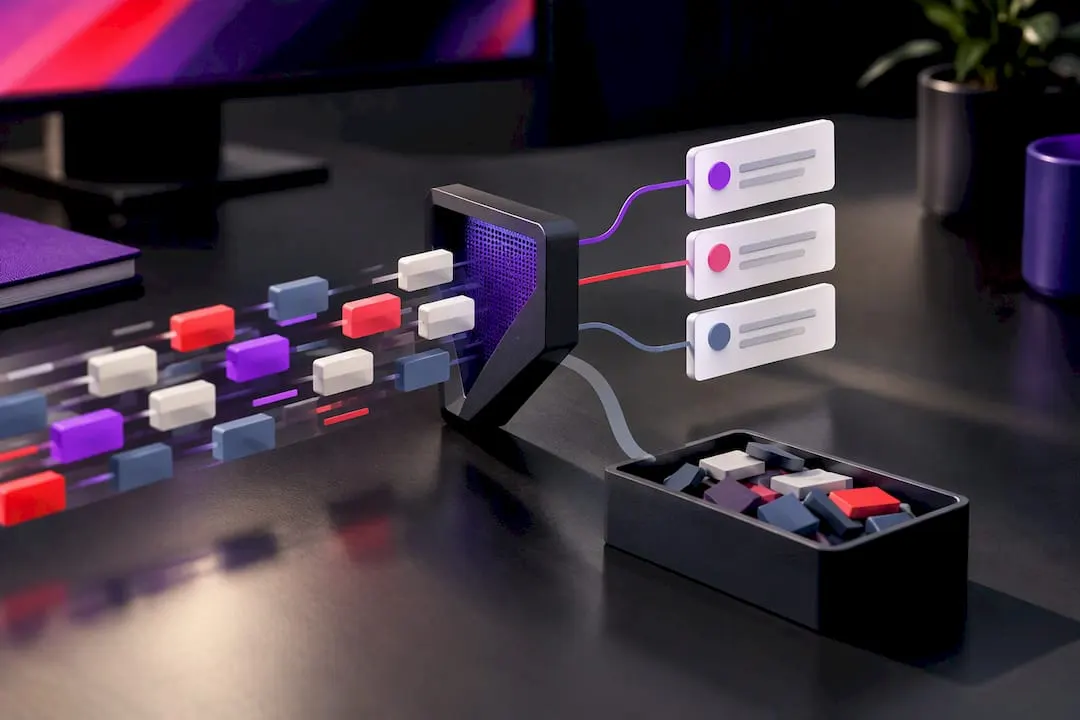
A text alert only helps if you can read it at a glance. TradingView supports placeholders like {{exchange}}:{{ticker}} {{interval}} {{close}} that pull live values into your message automatically, so you are not stuck writing static text that goes stale.
A few templates cover most situations:
- Price break:
{{ticker}} broke {{close}} on {{interval}}. Check chart. - Strategy signal:
{{strategy.order.action}} signal on {{ticker}} at {{close}}. - Multi-condition alert:
{{ticker}} RSI + volume trigger hit on {{interval}}. Review now.
Not every alert deserves a text. Reserve SMS for signals that require immediate action, and route everything else, confirmations, informational updates, minor threshold touches, to push notifications or email instead. According to text.email, keeping SMS alerts limited to high-priority signals is the main defense against alert fatigue, since a flood of low-value texts trains you to ignore all of them, including the ones that matter. If your template includes a link, shorten it and put the essential ticker and price information in the first 160 characters, since some carriers truncate longer messages.
Alternatives: webhook-to-SMS, native push, or forwarding services
Email-to-SMS forwarding is not the only path, and it is worth knowing the trade-offs before you commit to one setup.
- Email-to-SMS forwarding is fast to set up and needs no coding, but delivery speed and reliability depend entirely on the forwarding provider, and delays of a minute or more are possible.
- Webhook to SMS, using a provider such as Twilio, gives you delivery receipts and more control over formatting, but in practice it usually requires A2P (application-to-person) registration, added cost, and more setup time.
- Push notifications through the TradingView app, or delivery through Telegram, tend to be faster and free, but they depend on an internet connection and require the app or bot to be installed and configured.
Choosing between them comes down to a short checklist: how many alerts you expect per day, whether you need compliance-grade delivery records, what you are willing to spend, and how comfortable you are configuring a webhook. A trader firing off a handful of alerts a week has little reason to build a webhook pipeline, while someone running an automated strategy at scale usually needs the added reliability.
Quick fixes when SMS alerts don’t arrive
Most delivery problems trace back to one of four places.
- Verification code never arrived: check the forwarding service’s inbox view and spam folder, then request a new code rather than waiting on the first one.
- Alert never fires: open the specific alert and confirm “Send email” is checked and pointed at the correct forwarding address, since this setting lives per-alert, not account-wide.
- Device-level silence: review notification settings on iOS or Android, and if you want the text mirrored to another device, confirm SMS forwarding is turned on there too. Macworld’s guidance on Apple device notification settings is a useful reference when a message reaches your phone but produces no sound or banner. Some Apple users also report SMS behaving inconsistently across paired devices, which is a device setting issue rather than a TradingView problem.
- Retest with a minimal alert: create a bare-bones test alert, check the forwarding service’s delivery log, and retry before assuming the pipeline is broken.
Pro Tip: When in doubt, test one link in the chain at a time: TradingView to email, then email to SMS. That isolates the failure point faster than retesting the whole pipeline at once.
Publisher example: how Big Move Algo applies alert delivery best practices
Big Move Algo, a proprietary TradingView indicator that generates Long, Short, and Exit signals, treats alert delivery as a triage problem rather than a single setting. AUTO Mode signals meant for immediate action, like a confirmed Long or Exit call, are the kind of alert worth sending by SMS. Lower-priority chart updates, like a signal still forming, are better suited to push or email.
The publisher documents several delivery paths for readers building their own setup:
- A guide to Telegram delivery for traders who want instant, free notifications without SMS fees.
- A webhook integration guide for connecting alerts directly to a broker.
- A general alert setup guide covering how email-to-SMS fits as the quickest option for traders who just want a text.
Practical rules for using SMS alerts without losing focus
Treat SMS as a last resort channel, not a default. Send yourself a text only for signals you would act on within minutes, test the full pipeline before you trust it in live trading, and keep the publisher’s setup guides on hand for anything beyond basic forwarding.
— Steven Hartwell
Big Move Algo: a pre-configured option for traders who want fewer decisions
Setting up email-to-SMS forwarding solves the delivery problem, but it doesn’t solve the harder question: which signals are worth a text in the first place. Big Move Algo is built to answer that question for you, with a TradingView indicator that generates Long, Short, and Exit signals directly on the chart.
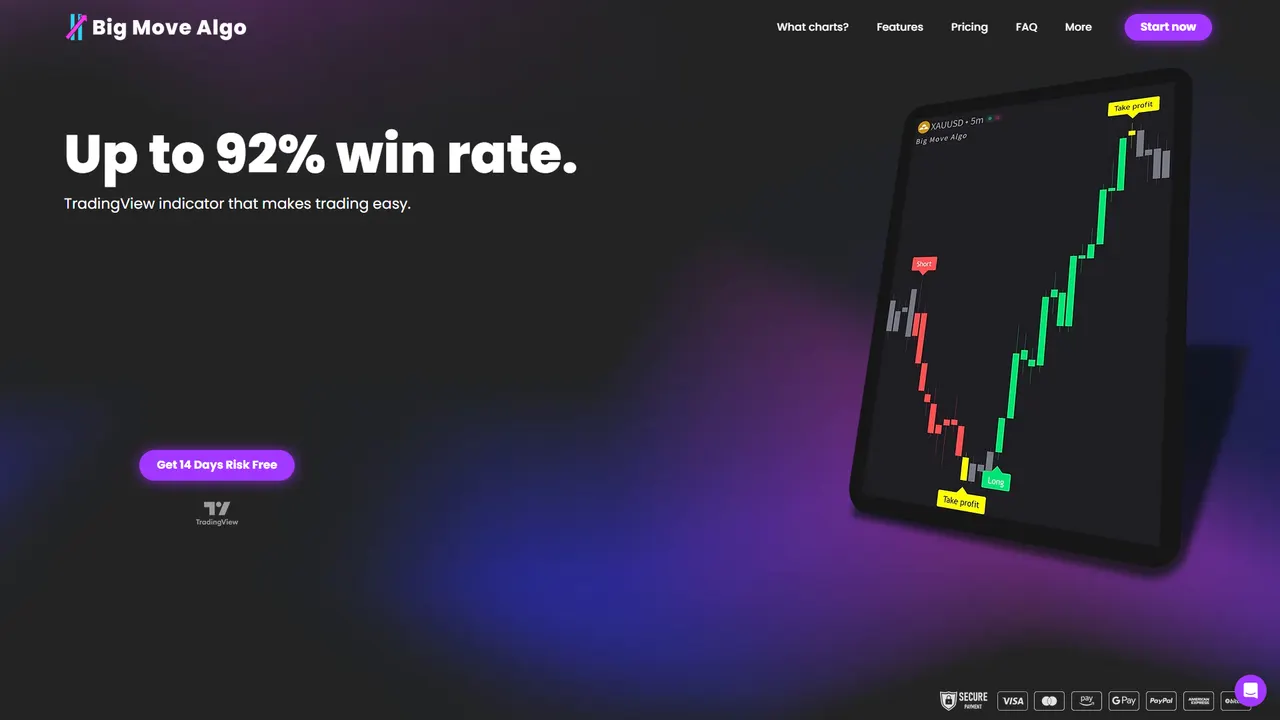
- AUTO Mode gives beginners a working setup in minutes, while Manual Mode adds room for experienced traders to adjust conditions.
- The built-in Fake Trend Detector filters out low-quality setups before they ever reach your phone as a false alert.
- Multi-channel delivery and setup guides help you manage alert pipelines effectively.
Check current plans and instant access at Bigmovealgo.
Sources
The setup steps and message templates in this article draw on text.email’s guide to TradingView text alerts and TradingView’s own alert delivery documentation. Device-level troubleshooting references Macworld’s coverage of Apple notification settings and a discussion thread on Apple’s forums about multi-device SMS behavior. For deeper automation context, Ciphora’s guide to TradingView alerts covers management and automation strategies.
- Text
- Tradingview
- How to control simultaneous notifications sounds across your Apple devices | Macworld
- Text alerts on multiple devices at the same time.
FAQ
Why am I not receiving alerts from TradingView?
The most common causes are an unverified email-to-SMS address, an alert where “Send email” isn’t checked, or a phone’s notification settings blocking the message. Start by confirming the forwarding address is verified in TradingView’s Alerts delivery settings, then check the specific alert’s notification options.
Can I get free alerts on TradingView?
Yes, TradingView’s built-in email and app push notifications are free, and Telegram delivery is also free once configured. Email-to-SMS forwarding is often free or low-cost depending on the provider you choose, such as text.email.
How do I set up alerts on TradingView?
Open a chart, click the bell icon or right-click to create an alert, set your condition, and choose a delivery method under Notifications. For SMS, check “Send email” and select a verified email-to-SMS forwarding address as the destination.
How can I stop receiving alerts on TradingView?
Open the Alerts panel, find the specific alert, and delete or pause it to stop future notifications. To stop all email-based alerts at once, remove the forwarding address from Alerts delivery in your account settings.