Update TradingView Indicators: Five Fixes, Then Provider Help

Refresh the page first, then confirm Pine Editor is linked to your chart and re-add the indicator if the refresh alone doesn’t work. If you need an older version, open Pine Editor, go to Manage script, select Version history, and add that specific version to your chart. If the plotted lines look different after any of this, check for repainting or a Pine version mismatch before you trust the new output.
TL;DR:
- If a refresh fails, confirm the green Pine Editor link targets the active chart, then update the chart or remove the indicator and add it again.
- Version history can add older releases in separate panes, but it requires visible source, so many paid or invite only scripts are excluded.
- For purchased or invite only indicators, check the provider’s installation instructions because updates may arrive outside TradingView’s usual script workflow.
- Before setting alerts, test updated plots on historical data and several closed real time bars; live bar values can shift after confirmation.
Table of Contents
- Quick checklist to refresh or apply an updated indicator
- Troubleshooting checklist when code changes don’t appear on charts
- How to view and add older versions in Pine Editor
- Why Pine Script version changes and repainting affect your results
- How Big Move Algo handles version updates and onboarding
- A practitioner’s workflow for stalled indicator updates
- Where to get Big Move Algo and how we handle updates for you
- FAQ
- Official docs and internal guides to verify these steps
Quick checklist to refresh or apply an updated indicator
Most update problems resolve in under two minutes if you work through the steps in the right order. Start with the fastest fix and only move to the next step if the chart still shows the old version.
- Reload the TradingView tab. A hard refresh (clearing the browser cache for that page) forces TradingView to check for and apply the latest script update, which is the most reliable immediate fix when a developer pushes a new version while your chart is open.
- Check that Pine Editor is linked to the active chart. Look for the green link icon next to the script name, then use Update on chart or Add to chart to push the current code to your layout.
- Remove the indicator from its pane and add it again from the indicators list. This forces TradingView to pull the latest published version instead of a cached instance.
- For an older version, open Pine Editor, select Manage script, then Version history, and add that version to the chart as a separate instance.
- If the indicator is invite-only or purchased from a provider, check the provider’s installation instructions first, since updates for those scripts are often managed and delivered differently than open-source community scripts.
Run through these five in order and most stalled updates clear up by step three. If you’re still looking at old code after that, the issue is usually something more specific to your browser, your chart tabs, or how the script is distributed, which the next section covers.
Troubleshooting checklist when code changes don’t appear on charts
When a straightforward refresh and re-add doesn’t fix things, the cause usually falls into one of four categories: browser state, chart linkage, pane confusion, or how the script reaches you in the first place.
- Browser cache and multiple tabs: Old chart tabs can hold a cached copy of the script. Close every TradingView tab, clear the site’s cache, or open a fresh incognito window and reload to confirm whether the update appears.
- Pine Editor linkage: Confirm the editor shows a green icon next to the chart you’re actually looking at. A gray or disconnected icon means your edits or updates aren’t targeting the active layout, so Add to chart and Update on chart won’t do anything visible.
- Indicator pane confusion: If you’ve added a script more than once across several panes, you may be looking at an old copy while the updated one sits in a different pane. Check for an “Update available” marker near the script name in your indicators list.
- Invite-only or purchased indicators: Updates for these typically arrive through the provider rather than a generic TradingView notification, so check the provider’s own installation or version page if the script looks outdated.
- Developer pushes an update while your chart is open: Force a full reload, then remove and re-add the script. If the old version persists, use Pine Editor’s Version history to confirm which version is actually loaded.
Pro Tip: Before setting any alert on a newly updated script, watch it run on a few live bars first. If the plotted signal shifts after the bar closes, the script may be repaint-prone, and alerts on that kind of script can behave differently from what you see on the chart.
Clearing cache, confirming the link icon, and checking for duplicate panes resolves the large majority of “my update isn’t showing” cases. The remaining ones usually trace back to how the script is versioned, which is where Pine Editor’s history tool becomes useful.
How to view and add older versions in Pine Editor
When you need to roll back to a version that worked better, or compare what changed, Pine Editor’s version history gives you direct access to past releases of an open-source script.
- Open the indicator on your chart and click the Source code icon, shown as curly brackets ({}), to launch Pine Editor.
- From the Manage script dropdown inside the editor, select Version history to see a list of past versions tied to that script.
- Use the preview and diff tools to compare what changed between versions before deciding which one to restore.
- Click Add version to chart to place the selected older version in a new pane, separate from the current one, so you can compare both side by side.
- Watch for the “Update available” label near the script name. It signals that a newer version exists beyond the one currently applied to your chart.
Version history only works for scripts where the source is visible to you, meaning most open-source community indicators and some TradingView built-ins. Invite-only or purchased scripts without published source don’t expose this tool, so version control for those depends on whatever the provider makes available, which is worth checking directly on the product’s own page.
Why Pine Script version changes and repainting affect your results
Repainting happens when a script’s plotted values change after the fact, once more price data comes in, rather than staying fixed the way a confirmed bar should. The TradingView documentation on repainting points to several common causes: request.security() calls with certain lookahead settings, reliance on barstate.* variables, or use of timenow, all of which can behave differently on historical bars versus the live, unconfirmed bar.
- Check the
//@versiondeclaration at the top of the script. An older version number can mean the code relies on syntax or functions that behave differently under the current Pine Script engine. - Scan for deprecated functions after any update, since migrating to the latest Pine version is one of the more common fixes for errors that show up only after a script update.
- Test the updated script on historical data first, then watch it for several confirmed real-time bars before trusting the signal, which is the simplest way to catch a repainting difference before it costs you a trade.
Repainting is not automatically a bug. It often reflects a real difference between how a script calculates on historical bars versus live bars, and the TradingView support team explicitly advises against setting alerts on scripts known to repaint. TradingView’s own multi-condition alerts feature, introduced to let traders combine up to five conditions in a single alert without writing Pine Script, has reduced how often some traders need to touch custom alert code at all. For a deeper look at how version numbers and syntax changes interact, our guide to Pine Script in TradingView walks through migration basics in more detail.
How Big Move Algo handles version updates and onboarding
We built Big Move Algo as a proprietary TradingView indicator, and we handle version delivery and documentation directly rather than leaving traders to guess at Pine Editor settings on their own. Our Quick Installation page walks through applying the current release and restoring a previous version when needed, so update friction stays low even for traders who’ve never touched Pine Editor before.
We offer modes that reduce setup complexity depending on experience level, including one that requires minimal configuration for traders who want signals without tuning inputs and another that gives more experienced traders room to adjust settings. A built-in detector runs in these modes to filter out lower-quality setups before a signal reaches you.
For alert and customization questions that come up after an update, our guides on setting up TradingView indicator alerts and customizing chart trading signals cover the practical steps for getting your settings back the way you want them once a new version is applied.
A practitioner’s workflow for stalled indicator updates
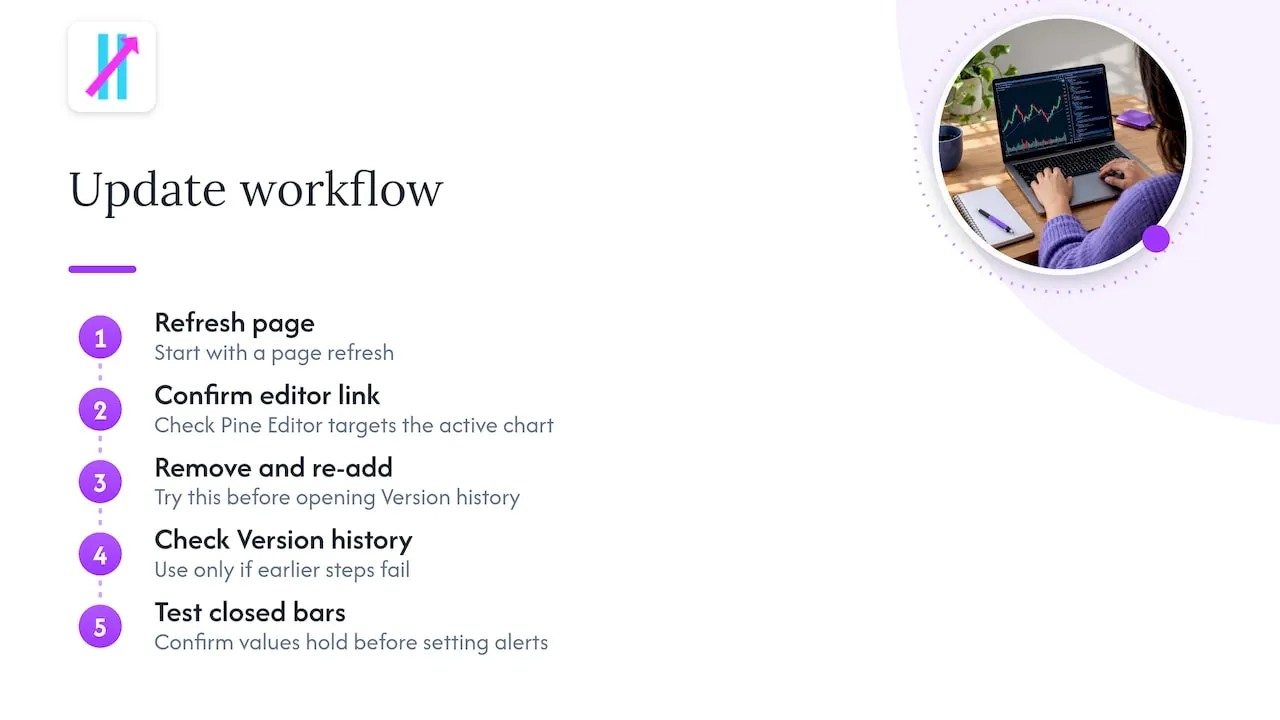
My own sequence when an indicator refuses to update is short: refresh the page, confirm Pine Editor is linked to the chart I’m actually looking at, remove and re-add the script, then fall back to Version history only if the first three steps fail. That order matters because each step costs more time than the last, and most problems clear up before you ever need the editor’s history tool.
The step traders skip, and shouldn’t, is testing on historical bars before trusting a freshly updated script. Confirm the plotted values hold steady across a few closed bars before you set any alert on it. A script that repaints on the live bar can look perfect in testing and still mislead you the moment you rely on it for a real signal.
— Steven Hartwell
Where to get Big Move Algo and how we handle updates for you
If managing Pine Editor links, cached tabs, and version history sounds like more friction than you want for every trading session, that’s exactly the gap we built Big Move Algo to close. We provide instant access after purchase, documentation for setup, and a dedicated Quick Installation page for restoring previous versions, so you’re not troubleshooting Pine Script on your own.
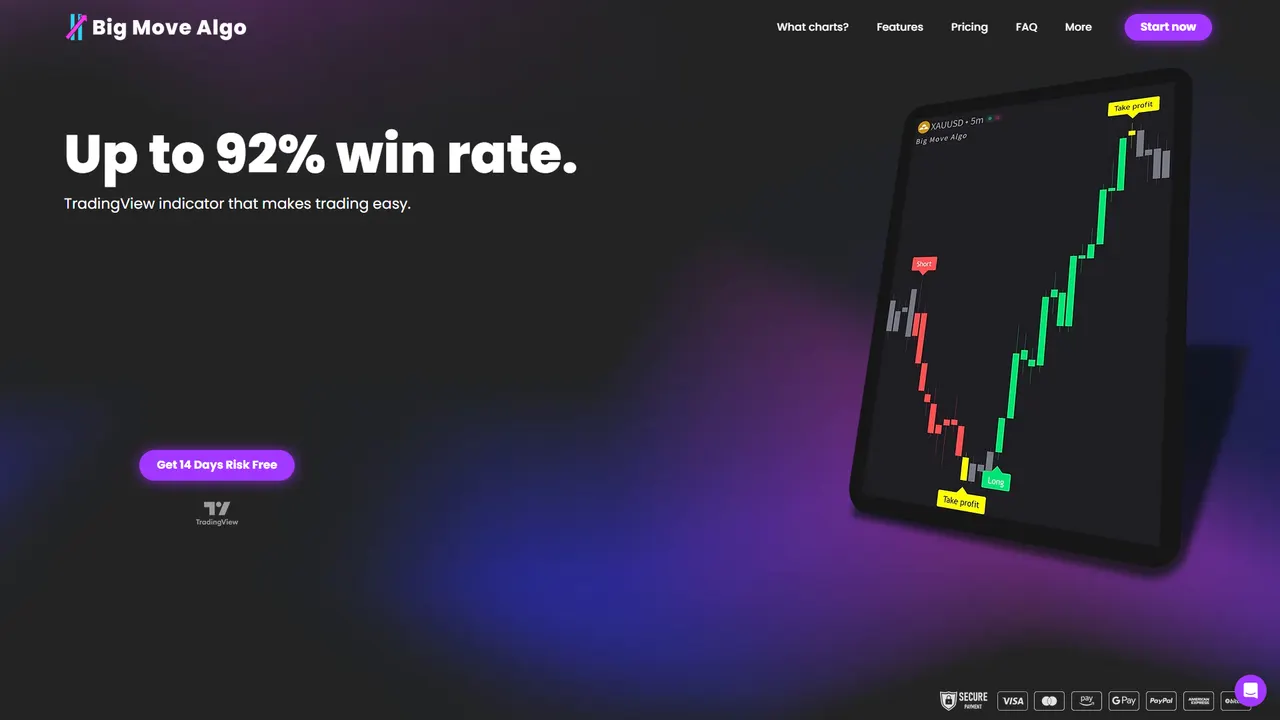
After subscribing, you install the indicator on your TradingView chart, choose AUTO or Manual Mode based on your experience level, and follow the Quick Installation steps if you ever need to roll back to an earlier release. Visit the Big Move Algo product page to see current plans and get set up on your chart today.
FAQ
Can I find the RSI indicator on TradingView?
Yes, the Relative Strength Index is a built-in indicator available directly from TradingView’s indicators library, with no installation required. You can add it to any chart by searching “RSI” in the indicators panel and adjusting its length and overbought and oversold levels from the settings menu.
How do I use the rate of change indicator?
The Rate of Change indicator measures the percentage change in price over a set number of bars, helping you spot momentum shifts as the line crosses above or below zero. Add it from TradingView’s built-in indicator list, then watch for sustained moves away from the zero line as a sign of building momentum rather than relying on a single crossing.
Does TradingView update in real time?
TradingView streams live price data and updates charts in real time for most supported markets, though indicator plots on the current, unconfirmed bar can still shift until that bar closes. That live-bar behavior is part of why some scripts show different values after a refresh, which is a repainting issue rather than a data delay.
Is there a PDF tutorial for TradingView?
TradingView’s own documentation and support articles are published online rather than as a downloadable PDF, covering topics from chart setup to Pine Script syntax. For Big Move Algo specifically, our Quick Installation page and product documentation cover setup and version restoration in written, step-by-step form.
What does Big Move Algo cost?
Big Move Algo is available through several plans: Version 2 at $660 per year or $55 per month, Version 3 at $768 per year or $64 per month, and Version 3 Plus at $948 per year or $79 per month, all listed on the Big Move Algo product page.
Official docs and internal guides to verify these steps
For the exact TradingView procedures referenced above, their support article on applying an older version and their Pine Script release notes cover version history and language changes in full. For vendor-specific setup, our Quick Installation page covers restoring previous versions of Big Move Algo directly.