How to use?
Version 3.3 (latest)This page explains how to configure Big Move Algo, how to interpret its signals, and how to set up TradingView alerts — for both manual notifications and automation.
Applying Big Move Algo to the chart
1
Log in to the TradingView account (which you provided during purchase).
2
Launch any chart.
If you already had a chart opened, reload TradingView to load the new indicator for the first time.
3
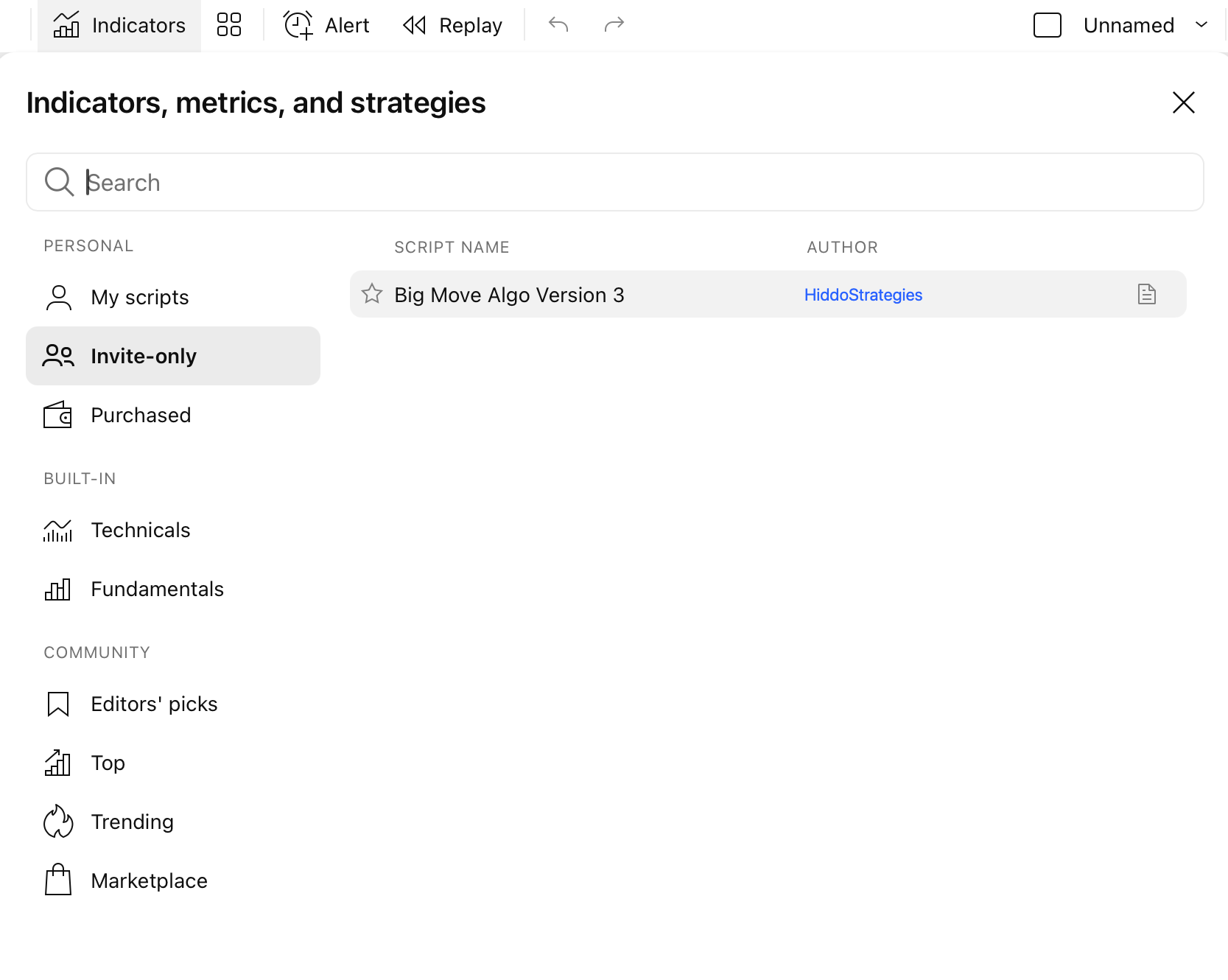
Open "Indicators", then from the "Invite-only scripts" tab, select "Big Move Algo Version 3".
4
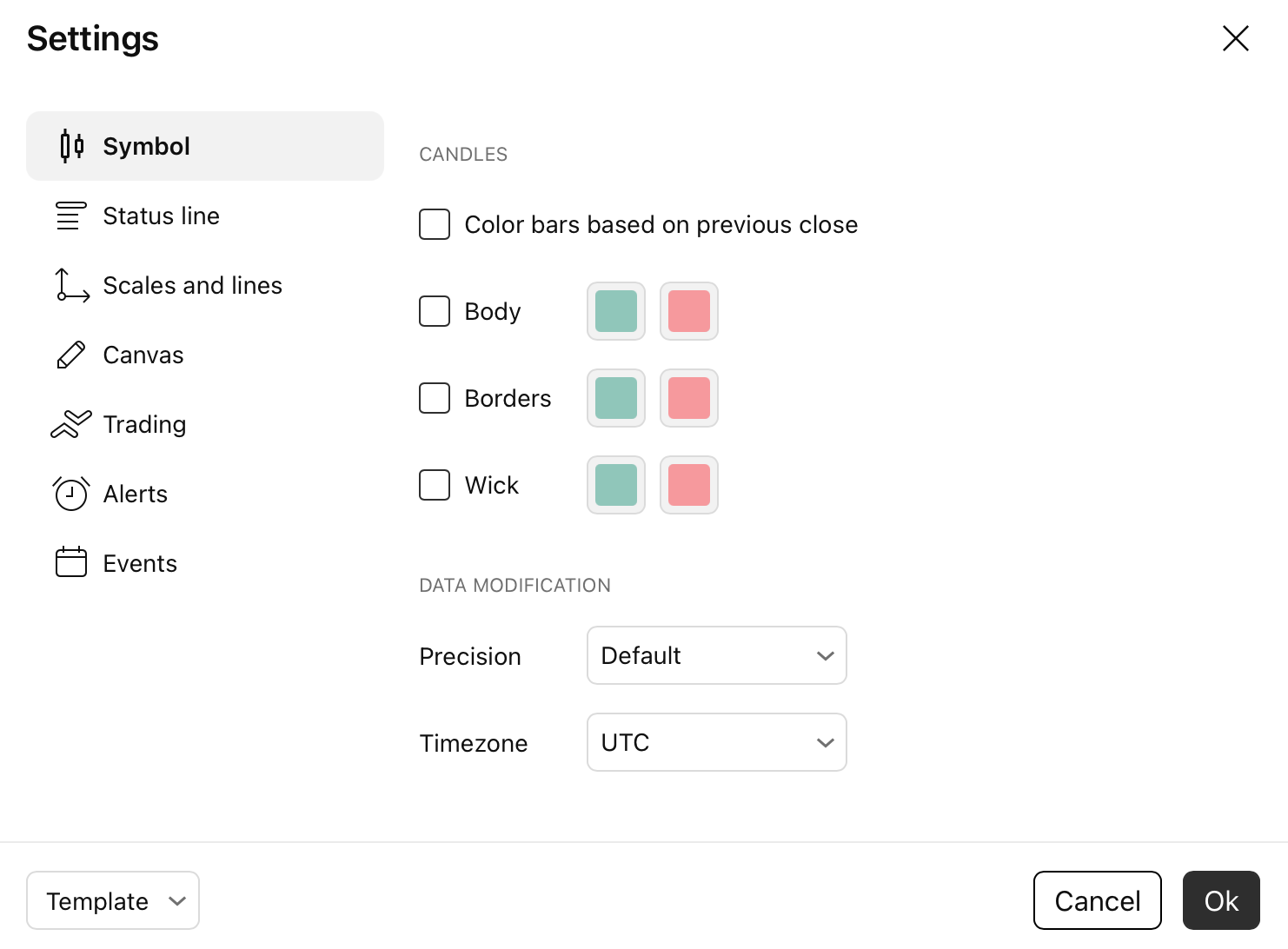
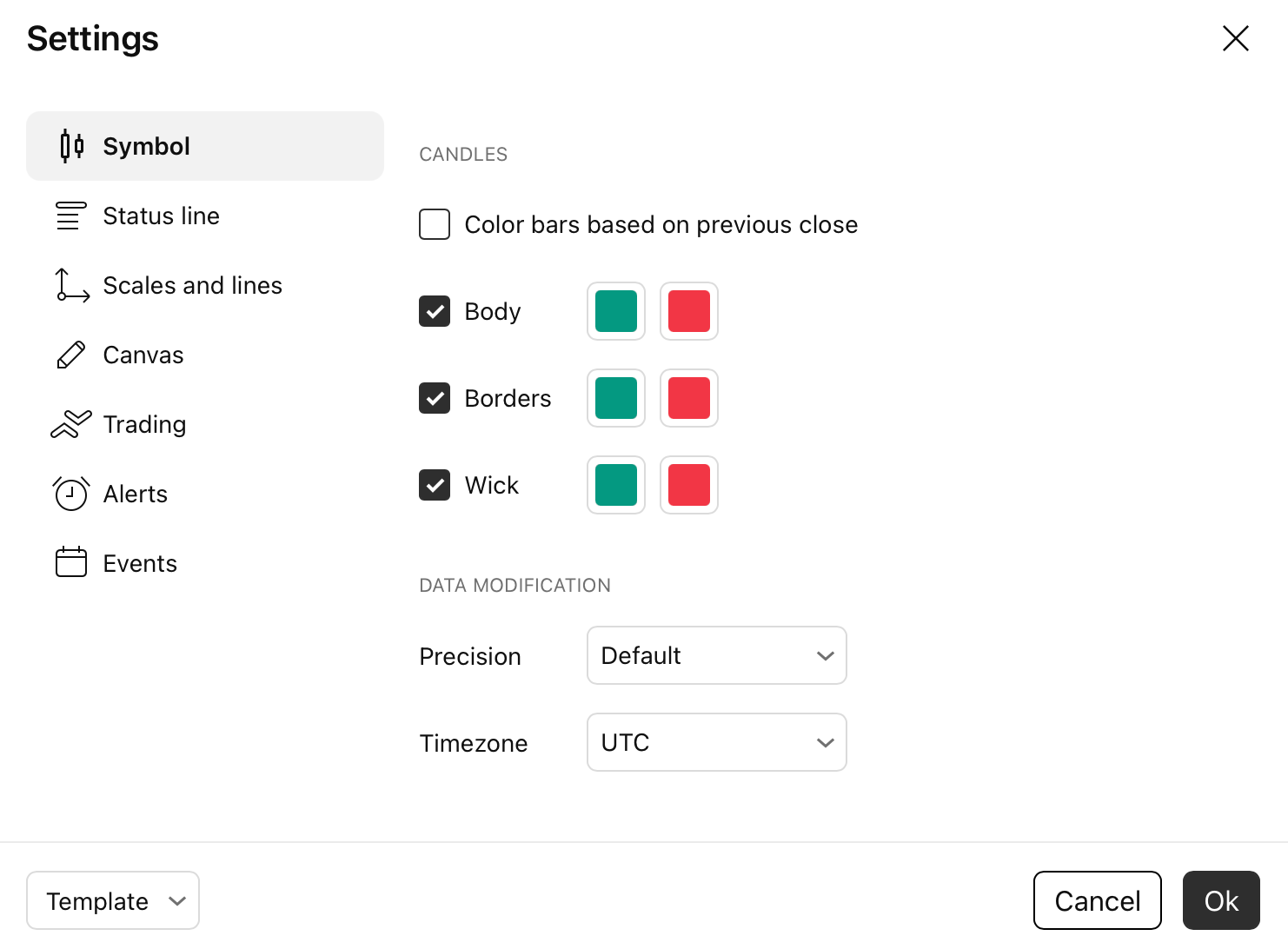
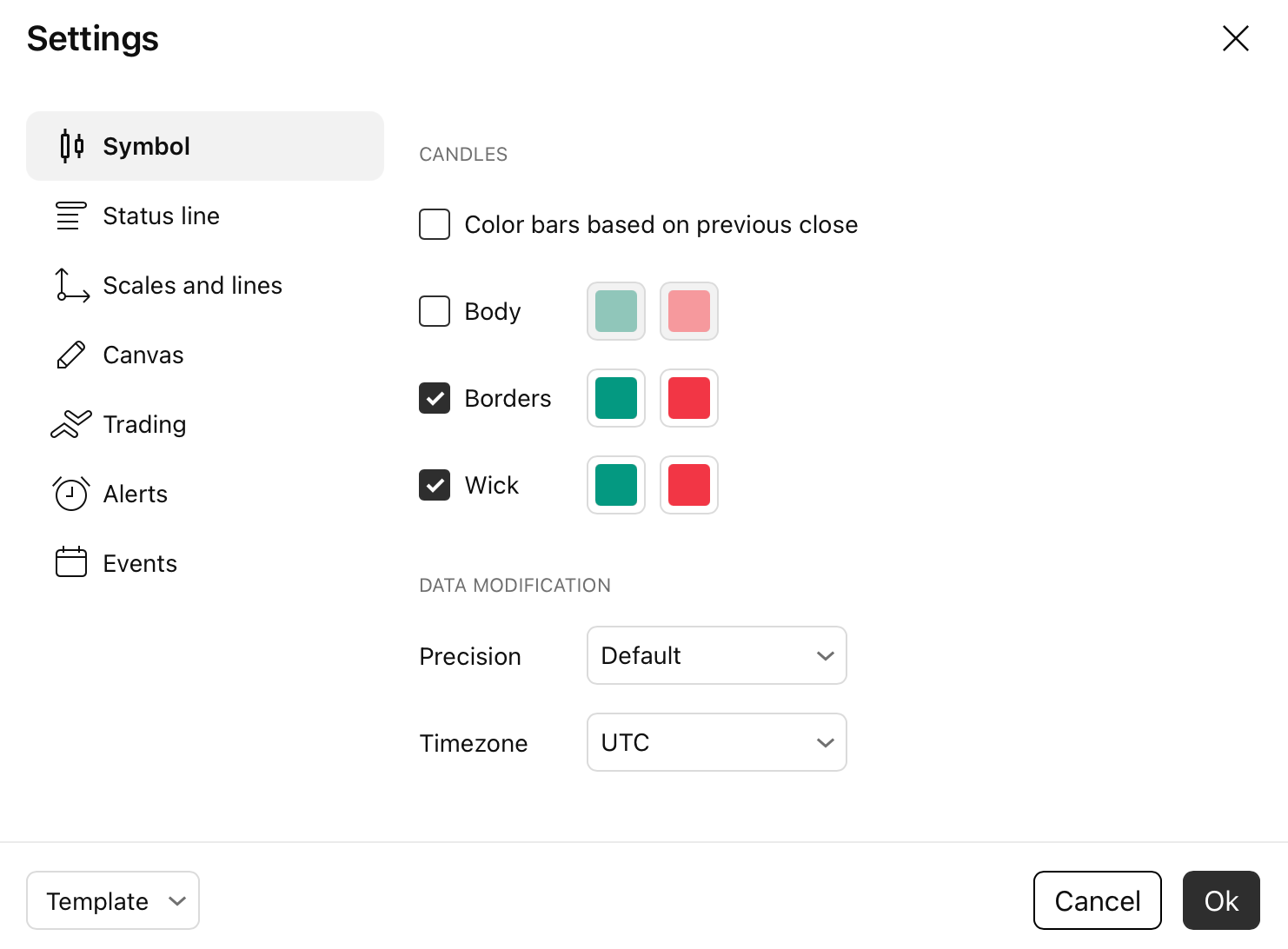
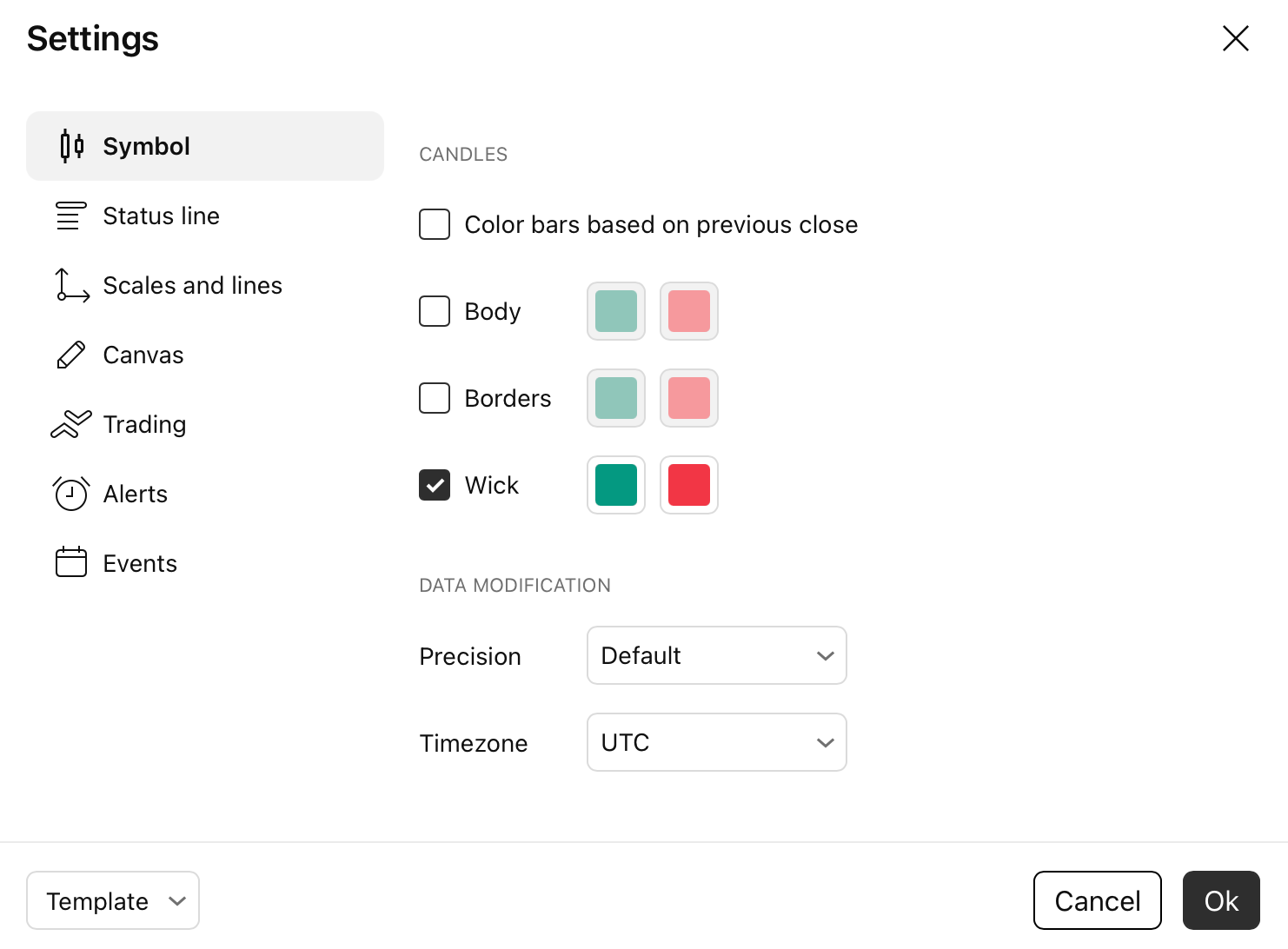
Open chart settings, then "Symbol", then disable "Body", "Borders" and "Wick". (optional)
Any problems? This may help:
Where are "Indicators"?
Open any chart on TradingView — the "Indicators" button sits in the top toolbar, in the middle of the screen. On a phone or a narrow window it may collapse to an "ƒ" icon.
I can’t see "Invite-only scripts".
The tab appears only after at least one invite-only script is assigned to your account. Make sure you are logged in to the exact TradingView username you gave us at checkout — access is tied to that account.
I don’t have "Big Move Algo Version 3" in my "Invite-only scripts".
Access is granted within 3 minutes of purchase. If it’s been longer, check that your TradingView username is spelled exactly as submitted (no typos, no email address), then refresh the page. Still missing? Message us on live chat — we respond in about a minute.
Settings
Mode (Auto vs Manual)
Choose how the algorithm selects its parameters.
AUTO MODE
The algorithm automatically selects the best settings for all parameters.
Recommended for beginners or anyone who wants a simple setup without manual tuning.
MANUAL MODE
You manually select preferred settings for one, several, or all parameters.
Recommended for advanced users or anyone who wants to test and optimize settings.
Where to change settings: on TradingView, click the indicator name (Big Move Algo) in the top-left of the chart, then open the Settings (gear icon).
Only in Auto Mode
"Your Trading Style"
AUTO mode has one main tuning option.
Dynamic Signals
More signals
Most frequent, shortest, earliest, and least certain signals. Detects potential profitable trades the fastest, but can produce more false signals.
Balanced Signals
Medium
Moderately frequent signals with a balanced mix of early detection and certainty. This is the middle option of the AUTO modes.
Safe Signals
Most certainty
Least frequent, longest, latest, and most certain signals. Often finds the strongest trends, but signals can appear later.
Only in Manual Mode
Parameters explained
Manual mode lets you fine-tune entries, exits, and filtering.
Entry Length
Determines how much past data is used to generate entry signals.
Smaller values: more signals, earlier entries, shorter moves, lower certainty. Larger values: fewer signals, later entries, longer moves, higher certainty.
Smaller values: more signals, earlier entries, shorter moves, lower certainty. Larger values: fewer signals, later entries, longer moves, higher certainty.
Entry Smooth
Controls how much the entry data is smoothed before signals are generated.
Smaller values: more signals, earlier entries, lower certainty. Larger values: fewer signals, later entries, higher certainty.
Smaller values: more signals, earlier entries, lower certainty. Larger values: fewer signals, later entries, higher certainty.
Exit Length
Determines how much past data is used to generate exit signals.
Smaller values: more exits, earlier exits, lower certainty. Larger values: fewer exits, later exits, higher certainty.
Smaller values: more exits, earlier exits, lower certainty. Larger values: fewer exits, later exits, higher certainty.
Exit Value
Determines the sensitivity of exit generation.
Smaller values: fewer exit signals. Larger values: more exit signals.
Smaller values: fewer exit signals. Larger values: more exit signals.
Fake Trend Detector
Controls sensitivity of false trend detection (gray candles).
Smaller values: fewer candles classified as a false trend. Larger values: more candles classified as a false trend.
Smaller values: fewer candles classified as a false trend. Larger values: more candles classified as a false trend.
Tip: try different settings by opening Big Move Algo settings on the chart and testing on the same symbol/timeframe you trade.
Signals
When to buy, sell, or exit?
There is no single correct way, but most traders use signals like this.
"Long" signal (green candle)
Open a long position / close a short position if any is open. (An uptrend may begin.)
"Short" signal (red candle)
Open a short position / close a long position if any is open. (A downtrend may begin.)
"Take Profit" signal (yellow candle)
Close the current trend position. (The trend may stop or reverse.)
Fake Trend Detection (gray candle)
Close all positions and do not open new ones. (The trend is no longer identifiable.)
Higher certainty tip: consider confirming signals with additional analysis (price action, candlestick patterns, chart patterns, fundamentals, etc.).
Signals
Why "Take Profit" didn’t appear (or appeared multiple times)
This is normal behavior. Big Move Algo generates a "Take Profit" signal where a trend can potentially end or reverse.
Sometimes the algorithm identifies multiple potential exit zones during one trend, and sometimes it may not detect any "Take Profit" during the entire trend.
If no Take Profit appears: a signal in the opposite direction can be treated as a potential trend stop.
Important: no "Take Profit" signal does not mean the trade was not profitable.
Alerts
Alerts — how to set up and use them
Use alerts to stay updated even when charts are closed.
For manual trading — use only 1 alert
You do not need separate alerts for Long, Short, and Exit. Simply create one TradingView alert and choose:
Condition → Any alert() function call
This single alert automatically sends notifications for: Long Signal · Short Signal · Exit Signal.
For automation / bots — separate alert conditions
Big Move Algo can be a fully automated indicator. Everything about automation is described at:
Step-by-step: creating an alert in TradingView
1
Click the Alerts (clock) icon in TradingView.
2
Click Create Alert.
3
In Condition, select Big Move Algo Version 3.3.
4
For manual trading, choose Any alert() function call.
5
Click the Create button at the bottom.
How manual-trading notifications work
When you use Any alert() function call, Big Move Algo automatically sends one of these built-in alert messages:
Big Move Algo: BTCUSD Long Signal
Big Move Algo: BTCUSD Short Signal
Big Move Algo: BTCUSD Exit Signal
Automation
Automation (BOT trading)
Execute trades on autopilot.
Big Move Algo can be a fully automated indicator. Everything about automation is described at bigmovealgo.com/how-to-use-automation.
Support
Questions? We’re here.
Live chat — we reply in about a minute.