
Customize TradingView Chart Trading Signals Like a Pro


Customizing TradingView chart trading signals means configuring visual indicators, alert logic, and Pine Script code to produce precise, reliable buy and sell cues on your charts. The standard industry term for this practice is signal customization, and TradingView gives you three core tools to do it: Pine Script, alert presets, and visual styling controls. When you align these three layers correctly, your charts stop being a wall of noise and start delivering clear, data-driven decisions. This guide walks you through every step, from basic indicator styling to multi-pane dashboards and automated alert workflows.
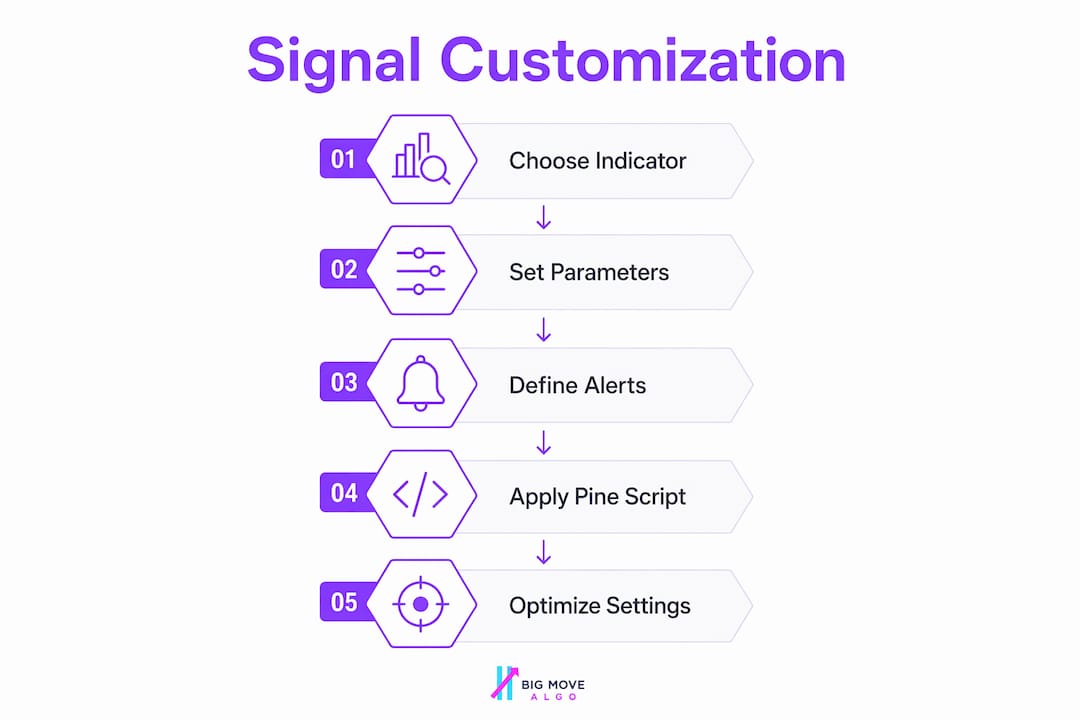
How to customize TradingView chart trading signals
Effective TradingView chart setup starts with understanding what each customization layer actually controls. Visual settings change how signals look. Alert settings control when you get notified. Pine Script controls the logic behind both. Getting all three working together is what separates a useful chart from a confusing one.
Indicator and drawing tool settings
Every built-in indicator on TradingView lets you modify colors, line styles, and input parameters directly from the settings panel. Change your EMA ribbon to a single bold color, reduce opacity on volume bars so they stop competing with price action, and set your RSI line to a contrasting shade. These small visual choices compound into a chart that reads faster under pressure.

Timeframe and zoom controls
Your signal logic should match your timeframe. A crossover signal that works on a 4-hour chart will generate constant false positives on a 5-minute chart. Lock your chart to the timeframe your strategy was designed for, and use TradingView’s “Compare” feature to overlay a higher timeframe trend line without switching views.
Alert presets for workflow efficiency
TradingView supports up to five saved alert presets, each storing your condition, behavior, notification method, and message text. This means you configure a signal alert once and reuse it across every symbol you trade. For traders managing multiple charts, this feature alone cuts setup time significantly.
Pro Tip: Name your alert presets by strategy type, such as “Trend Follow Long” or “Mean Revert Short,” so you can apply the right preset instantly without re-reading every field.
Pine Script basics for custom signals
Pine Script is TradingView’s native scripting language. You do not need to be a developer to use it. A basic custom indicator is roughly 10 lines of code: a version declaration, a series calculation, and a plot command. The Pine Script editor is accessible from any chart via the “Pine Editor” tab at the bottom of the screen.
How to create custom buy and sell signals with Pine Script
Building your own signals in Pine Script gives you complete control over what appears on your chart and when alerts fire. The process follows a consistent four-step pattern that applies whether you are coding a simple moving average cross or a multi-condition entry filter.
Declare your version and inputs. Start every script with "//@version=5and useinput.int()orinput.float()` to make parameters adjustable from the settings panel. This keeps your code flexible without requiring edits every time you want to test a new value.
Calculate your signal condition. Define a boolean variable that evaluates to true when your entry criteria are met. For example: longSignal = ta.crossover(ta.ema(close, 9), ta.ema(close, 21)). This single line captures an EMA crossover without any complex logic.
Plot the signal visually. Use plotshape() to place an arrow or label on the chart at the exact bar where the condition triggers. Plotting shapes at signal conditions provides clear visual cues that align with alert triggers, so your chart and your notifications always match.
Write the alert condition. Add alertcondition(longSignal, title="Long Entry", message="EMA Cross Long") at the global scope of your script. This registers the alert inside TradingView’s alert dialog so you can activate it with one click.
Set the alert frequency. When creating the alert from the dialog, choose “Once Per Bar Close.” Bar-close alerting is safer and more reliable for live trading than intrabar alerting modes, because it only fires after a candle has fully formed.
Pro Tip: Always derive both your plotshape() call and your alertcondition() from the same boolean variable. If you calculate the condition twice with slightly different logic, your visual signal and your alert will occasionally disagree, which destroys trust in your setup.
One critical rule: alertcondition must be placed at the global scope of your script, never inside a function or an if block. Violations cause the alert to fail silently, one of the most frustrating bugs a Pine Script beginner encounters.
How to reduce chart clutter with multi-pane layouts
A chart loaded with six separate indicator panes is hard to read and slow to act on. TradingView’s force_overlay feature solves this by letting you plot elements from a separate-pane indicator directly onto the main price chart. The result is a single, clean view that shows price and signals together.
force_overlay enables single-indicator multi-pane dashboards, which is critical for traders who need to display multiple correlated signals without hitting TradingView’s indicator count limits. Both plot() and plotshape() support force_overlay=true as a parameter.
Building a multi-symbol comparison panel
The request.security() function pulls data from any symbol or timeframe into your current chart. Multi-symbol dashboards built with request.security can combine multiple instruments’ RSI or other indicators with tables and colored text overlays. A practical example combines four data streams into one table displayed in the chart corner:
Panel element | What it shows |
RSI row | Overbought or oversold status for each symbol |
EMA trend row | Whether price is above or below the 50 EMA |
Volume row | Whether current volume exceeds the 20-bar average |
Signal row | Active long, short, or neutral status per symbol |
This kind of dashboard gives you a market overview without opening four separate chart tabs. The performance cost is real, though. Each request.security() call adds processing load, so limit your dashboard to four or five symbols before you notice lag.
Best practices for managing TradingView alerts linked to signals
Alert configuration is where most traders lose consistency. The signal logic is correct, but the alert fires at the wrong time, sends an incomplete message, or stops working after a chart reload. These practices prevent the most common failures.
Use strategy alerts for strategy scripts. Alertcondition is designed for indicator scripts, while strategy scripts require using built-in strategy alert conditions. Mixing the two causes alerts not to trigger as expected.
Use dynamic placeholders in alert messages. TradingView supports placeholders like {{close}}, {{ticker}}, and {{plot_0}} to include real-time data in alert messages and webhooks. A message reading “Long signal on {{ticker}} at {{close}}” is far more useful than a static “Buy.”
Leverage strategy order placeholders for automation. Strategy scripts support placeholders like {{strategy.order.action}} for dynamic webhook messages. This lets you send structured payloads to automation platforms without writing a separate integration layer.
Apply alert presets consistently. Alert presets reduce setup mistakes and ensure consistent alerts across multiple charts and symbols. Build one preset per strategy type and apply it every time.
The single most reliable alert setup is: one boolean condition, one plotshape, one alertcondition, all derived from the same variable, fired at bar close. Anything more complex should be tested on paper before going live.
Troubleshooting common TradingView signal customization issues
When your chart visuals and alerts stop agreeing, the fix is almost always in one of five places. Work through this list before rewriting your entire script.
Check the Pine Script console for errors. Open the Pine Editor and look at the output tab after saving. Syntax errors and type mismatches appear here. A script with a compile error will not update your chart, so your visual signals may be stale even if the chart appears to load.
Verify that alertcondition is at global scope. If your alert condition is inside an if block or a function, move it to the top level of the script. This is the most common reason alerts register in the dialog but never fire.
Confirm the alert frequency matches your strategy. If you set “Every Bar” instead of “Once Per Bar Close,” you will receive multiple alerts per candle during volatile moves. For most directional strategies, bar-close frequency is the correct choice.
Rebuild the alert after editing the script. TradingView does not automatically update existing alerts when you change your Pine Script code. Delete the old alert and create a new one every time you modify the underlying condition.
Reduce indicator count if charts feel slow. TradingView limits the number of indicators per chart based on your subscription tier. Use force_overlay and consolidated scripts to stay within limits. If you are hitting the ceiling, check whether two separate indicators can be merged into one script with multiple outputs.
For traders who want to understand how conflicting indicators create confusion, the root cause is almost always mismatched signal logic across separate scripts rather than a flaw in any single indicator.
Key takeaways
Effective TradingView signal customization requires aligning Pine Script logic, visual plotshapes, and alert conditions from a single boolean source, triggered at bar close.
Point | Details |
Single-source signal logic | Derive both plotshape and alertcondition from the same boolean variable to prevent mismatches. |
Bar-close alert frequency | Use alert.freq_once_per_bar_close to avoid false alerts from incomplete candles. |
Alert presets save time | TradingView stores up to five presets, covering conditions, messages, and notification settings. |
force_overlay reduces clutter | Place signals on the main price pane from any indicator to cut chart noise and indicator count. |
Global scope for alertcondition | Never place alertcondition inside functions or conditional blocks or it will fail silently. |
Why I stopped overcomplicating my TradingView setup
I spent about two years adding indicators to my charts before I realized the problem was not the number of signals. It was that my visual signals and my alerts were built from slightly different logic. I had one EMA calculation in my plotshape and a slightly different one in my alertcondition. The chart showed a signal. The alert fired three bars later. I made decisions based on the visual and got filled at a price the alert never intended.
The fix was embarrassingly simple: one variable, used everywhere. Once I rebuilt every script around that principle, my trust in my own setup went from about 60% to close to 100%. That trust matters more than any indicator setting.
The second thing I changed was adopting alert presets religiously. Before presets, I was manually configuring alerts on every new symbol I added to my watchlist. I made typos. I forgot to set the notification channel. Presets removed all of that friction. Now I apply a preset, confirm the condition, and move on in under 30 seconds.
My honest advice: start with the simplest possible signal, one condition, one plotshape, one alert at bar close. Get that working perfectly before you add a second condition. Complexity is easy to add and very hard to debug. The traders I see struggling most are the ones who built a 15-condition script before they understood why a 2-condition script was firing incorrectly. Clarity on your chart reflects clarity in your thinking. If you cannot explain your signal in one sentence, your chart is probably too complicated.
— Steven Hartwell
How Big Move Algo takes TradingView signal customization further
If building Pine Script from scratch feels like too steep a learning curve right now, Big Move Algo removes that barrier entirely.
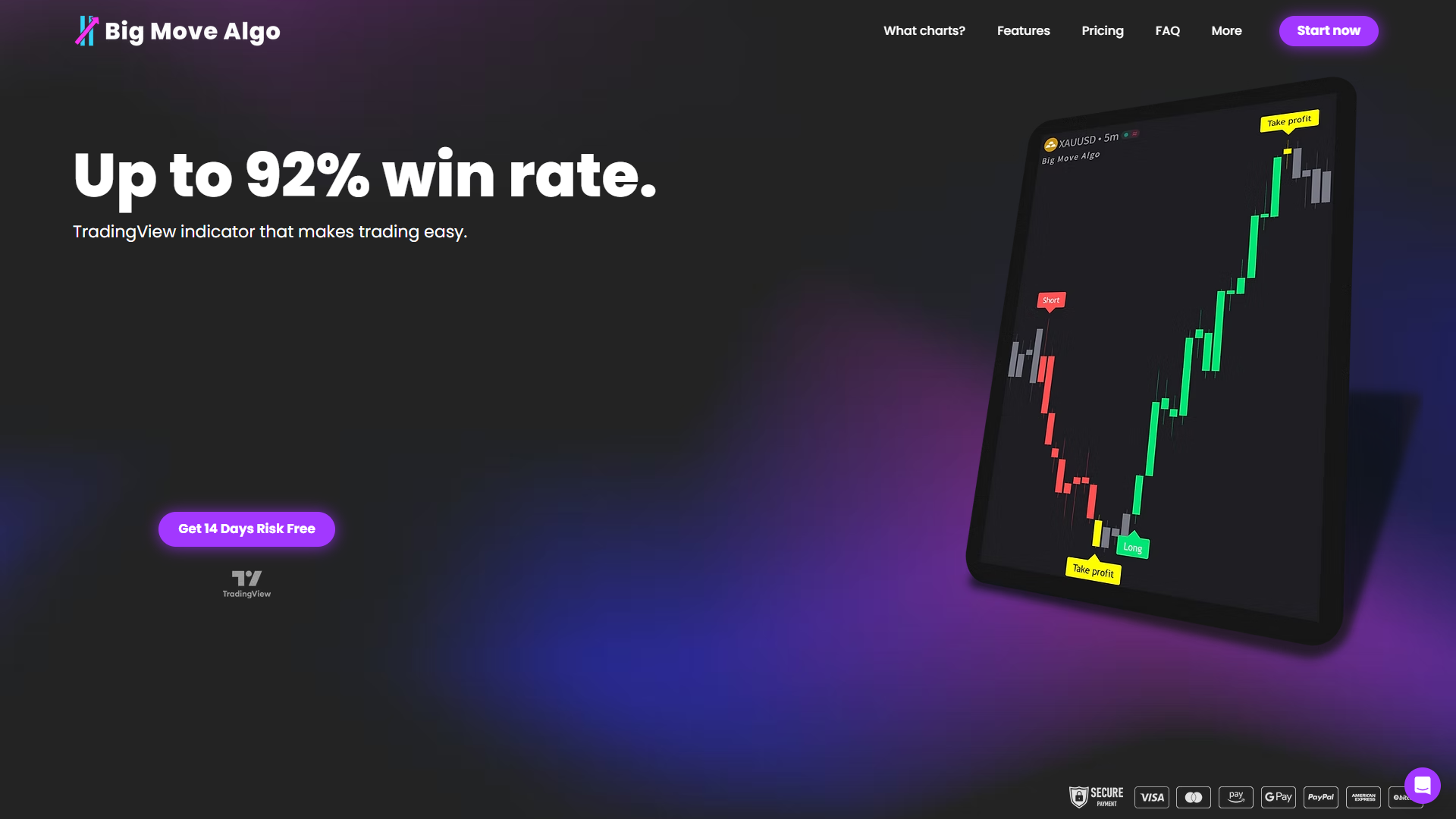
Big Move Algo is a proprietary TradingView indicator that delivers pre-built Long, Short, and Exit signals directly on your chart, with no coding required. Its built-in Fake Trend Detector filters out low-quality market conditions before a signal appears, which addresses the exact noise problem that manual customization tries to solve. For traders who want more control, Manual Mode supports additional parameter adjustments. You can explore the full setup process on the Big Move Algo how-to guide or go straight to the main platform page to see current subscription options. It works across crypto, forex, stocks, indices, and commodities, so your customized chart setup transfers across every market you trade.
FAQ
What does it mean to customize TradingView chart trading signals?
Customizing TradingView chart trading signals means modifying indicator visuals, writing Pine Script conditions, and configuring alerts so that buy and sell cues match your specific strategy logic and appear clearly on your chart.
How do I stop my TradingView alerts from firing multiple times per candle?
Set your alert frequency to “Once Per Bar Close” when creating the alert. This uses the alert.freq_once_per_bar_close option, which fires only after a candle has fully closed and eliminates intrabar noise.
Can I reuse the same alert settings across multiple symbols?
Yes. TradingView saves up to five alert presets that store your condition, behavior, message, and notification preferences, so you can apply identical settings to any new symbol in seconds.
Why does my Pine Script alert not trigger even though the signal appears on the chart?
The most common cause is placing alertcondition inside a function or conditional block instead of at the global scope of the script. Move it to the top level and recreate the alert in TradingView’s alert dialog.
What is force_overlay and why does it matter for signal clarity?
force_overlay is a Pine Script parameter that plots indicator output directly on the main price pane instead of a separate panel. It reduces chart clutter and helps you stay within TradingView’s indicator count limits while keeping all signals visible in one view.
Recommended
Comments