
Pine Script in TradingView: A Complete 2026 Guide


Pine Script is TradingView’s proprietary programming language, purpose-built for creating custom indicators, backtestable strategies, and price alerts directly within the platform’s charting environment. The role of Pine Script in TradingView goes far beyond basic chart customization. It gives traders a full scripting environment that runs on TradingView’s servers, processes market data bar by bar, and outputs signals, drawings, and strategy reports without requiring any external software. Whether you trade crypto, forex, or equities, understanding Pine Script turns TradingView from a charting tool into a fully programmable trading workstation.
What is the role of Pine Script in TradingView?
Pine Script is defined as TradingView’s domain-specific scripting language, designed exclusively for financial market analysis. It is not a general-purpose language like Python or JavaScript. Every feature in Pine Script exists to solve a trading problem: plotting indicators, simulating entries and exits, or firing alerts when specific market conditions are met.
The language currently runs on version 6, which introduced stricter type checking and faster compile times. That matters because stricter typing catches logic errors before your script ever touches live chart data. For traders who rely on signals to make decisions, that reliability is not optional.

Pine Script sits at the center of TradingView’s customization ecosystem. Without it, traders are limited to the platform’s built-in indicators. With it, they can build anything from a simple moving average crossover to a multi-condition signal system that fires webhook alerts to an external execution service.
What are the main types of Pine Script scripts?
Pine Script organizes all code into three distinct script types: indicator, strategy, and library. Each type serves a specific function, and professional traders often use all three together.
Indicator scripts plot visual data directly on the chart. They calculate values like moving averages, RSI, or Bollinger Bands and display them as lines, histograms, or shapes. Indicators do not simulate trades. They are purely analytical tools that help traders read market conditions.
Strategy scripts go further. Changing an indicator() declaration to strategy() enables backtesting and generates a full performance report inside TradingView’s Strategy Tester. That report includes profit and loss, drawdown, trade count, and win rate. Traders use this to validate whether a trading idea actually works on historical data before risking real capital.
Library scripts are the least visible but arguably the most useful for experienced coders. They store reusable functions that other scripts can import. Instead of rewriting the same ATR calculation across ten different scripts, you write it once in a library and call it anywhere.
Script type | Primary function | Typical use case |
Indicator | Plots visual data on chart | Custom moving averages, signal overlays |
Strategy | Simulates and backtests trades | Validating entry/exit logic on history |
Library | Stores reusable functions | Shared calculation modules across scripts |
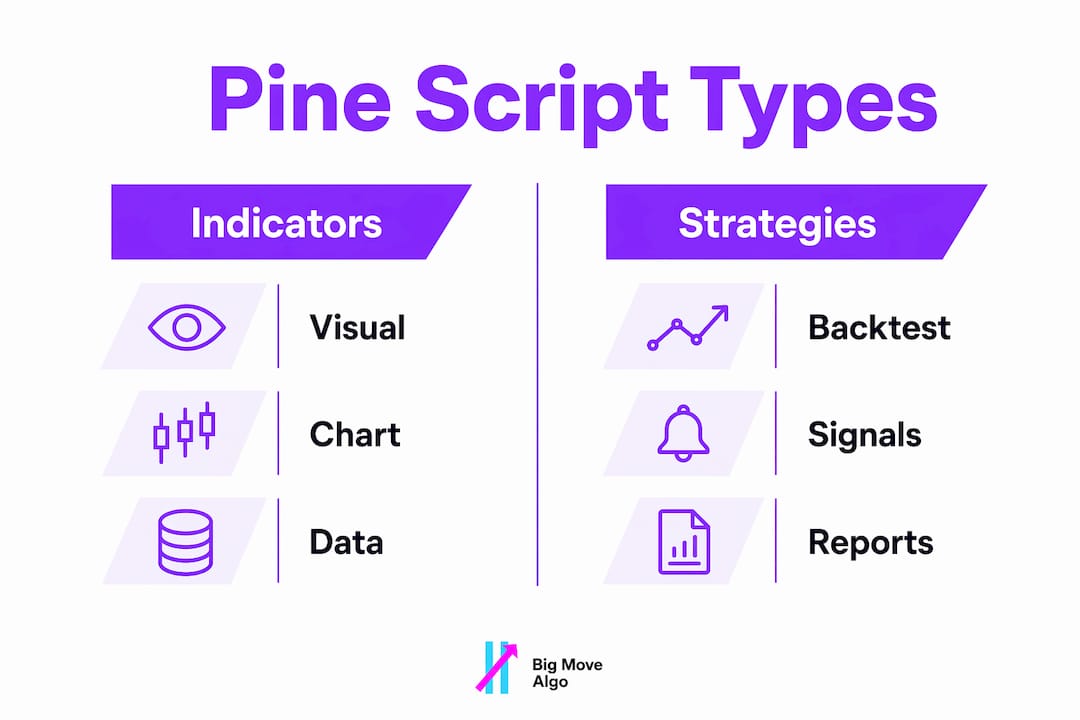
These three types complement each other in a natural workflow. A trader builds a calculation in a library, references it in an indicator to visualize signals, then converts the logic into a strategy to test performance. That modular approach keeps code clean and reduces errors.
How does Pine Script’s bar-by-bar execution model work?
Pine Script executes one full script per bar, processing bars sequentially from the oldest to the most recent. This is fundamentally different from how most programming languages work. There are no explicit loops over historical data. The language handles that automatically.
Every variable in Pine Script is a time-series. When you write close, you are not accessing a single number. You are accessing the closing price of the current bar. Writing close1] gives you the previous bar’s close. This [native time-series indexing is what makes Pine Script so efficient for technical analysis. You never need to build arrays or manage data structures manually.
This model has real implications for how you write code. Logic that works in Python may fail in Pine Script because the execution context changes on every bar. A variable that equals true on bar 500 may equal false on bar 501. Beginners frequently write conditions that assume a static state, then wonder why their indicator behaves unexpectedly.
The most common beginner mistake involves drawing objects. Pine Script enforces strict limits on the total number of drawing objects a script can create. Scripts that draw a line or label on every bar quickly exceed those limits and break.
Pro Tip: Use barstate.islast to restrict drawing object creation to the final bar only. This keeps your script within TradingView’s object limits and prevents unexpected failures on longer chart histories.
What are Pine Script’s limitations for trading automation?
Pine Script is powerful within TradingView, but it has hard boundaries that every trader needs to understand before building a serious automated system.
The most significant limitation is execution. Pine Script cannot place trades directly. It generates signals and fires alerts, but it has no connection to any broker or exchange. To automate actual order execution, traders must set up webhook alerts that send data to an external service, which then communicates with a broker API. Signal generation in Pine Script covers roughly 60% of an automated workflow. The remaining execution layer lives entirely outside TradingView.
Data access is equally restricted. Pine Script runs on TradingView’s servers and cannot fetch data from external REST APIs or databases. Every calculation must use data that TradingView already provides: price, volume, and any indicators available within the platform. If your strategy requires earnings data, economic calendars, or alternative data feeds, Pine Script cannot access them.
Vendor lock-in is the third constraint. Pine Script is proprietary and non-portable. Scripts written for TradingView cannot run anywhere else. If you ever move to a different platform, your Pine Script codebase has no value there.
Professional traders handle these constraints with a split architecture. Pine Script handles signal generation and alerting. An external program, often written in Python, receives the webhook alert and executes the trade with a broker. This separation keeps each component focused on what it does best.
Pro Tip: When building an automated system, treat Pine Script as your signal engine only. Design your external execution layer to handle retries, position sizing, and risk management. Mixing those responsibilities inside Pine Script alerts creates fragile systems.
How do you get started with Pine Script in TradingView?
The Pine Editor is available on every TradingView plan, including the free tier. Access it by clicking the “Pine Editor” tab at the bottom of the TradingView interface, or press Alt+P. The editor opens a code window where you can write, compile, and add scripts directly to your chart.
New traders can build a working custom indicator in TradingView in roughly 30 minutes. A basic script starts with a version declaration, a script type declaration, and one or two calculation lines. Here is what a minimal indicator looks like in structure:
//@version=6 declares the Pine Script version
indicator("My Indicator", overlay=true) names the script and sets it to display on the price chart
plot(ta.sma(close, 14)) calculates a 14-period simple moving average and plots it
From there, traders add conditions, alerts, and visual elements. TradingView’s built-in function library covers nearly every standard technical analysis calculation: ta.rsi(), ta.macd(), ta.atr(), and dozens more. You rarely need to code these from scratch.
Plan differences do affect how you use Pine Script in practice. The free TradingView tier limits traders to three indicators per chart. Paid tiers increase that limit significantly, which matters when you run multiple custom scripts alongside built-in tools.
A few practices separate traders who learn Pine Script quickly from those who struggle:
Test scripts on a clean chart with minimal other indicators to isolate behavior
Use label.new() with barstate.islast to print debug values on the current bar instead of using external print statements
Read TradingView’s official Pine Script reference manual before searching forums, since version 6 changed several function signatures
Share scripts publicly in TradingView’s community library to get feedback from experienced coders
Understanding algorithmic trading concepts alongside Pine Script syntax accelerates your development significantly. The language is easy to learn in isolation, but knowing why you are building a signal system makes every line of code more purposeful.
Key Takeaways
Pine Script is TradingView’s native scripting language, and mastering its three script types, bar-by-bar execution model, and automation limits is the fastest path to building reliable custom trading tools.
Point | Details |
Three script types | Indicator, strategy, and library scripts each serve a distinct role in a complete trading workflow. |
Bar-by-bar execution | Pine Script processes bars sequentially; every variable is a time-series, not a static value. |
No direct trade execution | Pine Script generates signals only; external webhook services handle actual order placement. |
Vendor lock-in is real | Scripts run exclusively on TradingView’s servers and cannot be ported to other platforms. |
Free tier access | The Pine Editor is available on all plans, but free accounts are limited to three indicators per chart. |
Why Pine Script is worth learning even with its limits
I have worked with traders across every experience level, and the ones who dismiss Pine Script because of its limitations are usually the ones who misunderstand its purpose. Pine Script is not trying to be Python. It is trying to be the best possible tool for writing trading logic directly inside a charting platform, and at that specific job, nothing else comes close.
The bar-by-bar execution model trips up beginners, but once it clicks, it becomes an advantage. You stop thinking about data management and start thinking about market logic. That shift is where real progress happens.
The vendor lock-in concern is legitimate, but it is also overstated for most retail traders. If TradingView is your primary charting platform, and for most active traders it is, then Pine Script’s deep integration with the charting engine is a feature, not a trap. The time you save by not building data pipelines or managing API connections is time you spend refining your actual trading logic.
My honest recommendation: start with indicator scripts. Build something simple that plots a signal you already use manually. Then backtest it as a strategy. The gap between what you thought your edge was and what the Strategy Tester shows you is the most valuable feedback you will ever get as a trader. Pine Script version 6 makes that feedback loop faster and more reliable than any previous version.
— Steven Hartwell
Big Move Algo and TradingView: built for traders who want clarity
Traders who want to see what a professionally built Pine Script indicator looks like in practice should explore Big Move Algo. Big Move Algo is a proprietary TradingView indicator that delivers real-time Long, Short, and Exit signals across crypto, forex, stocks, indices, and commodities.
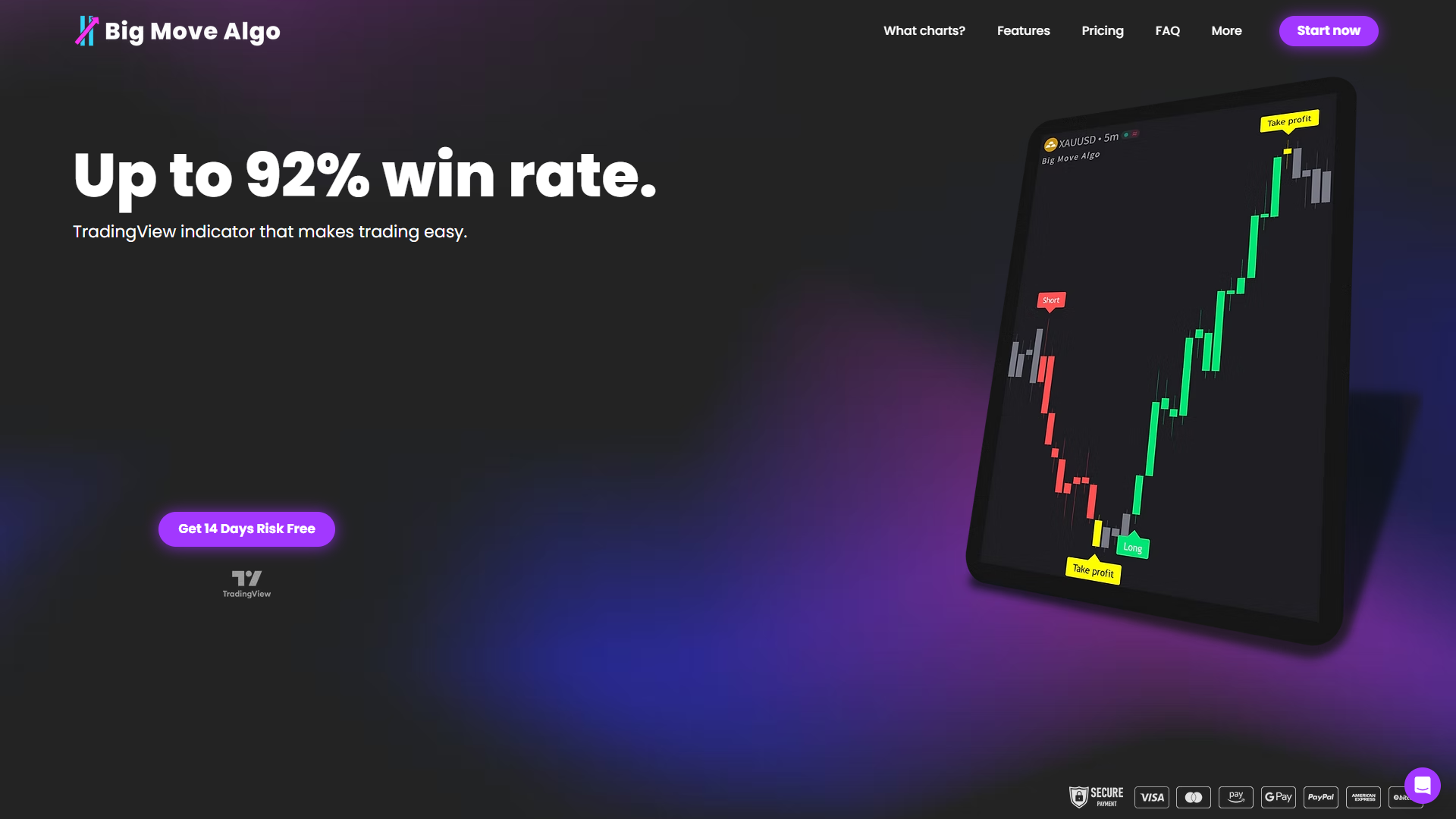
The built-in Fake Trend Detector filters out low-quality market conditions automatically, so you spend less time second-guessing signals and more time acting on them. AUTO Mode gets you running with minimal setup, while Manual Mode gives experienced traders additional control. If you are building your Pine Script knowledge and want a reference point for what a production-grade TradingView indicator looks like, visit Big Move Algo to see it in action.
FAQ
What is Pine Script used for in TradingView?
Pine Script is used to build custom indicators, backtest trading strategies, and set up price alerts directly within TradingView. It is TradingView’s native scripting language and runs entirely on the platform’s servers.
Can Pine Script place trades automatically?
Pine Script cannot place trades directly. It generates signals and fires alerts, which external services receive via webhook to execute orders with a broker.
Is Pine Script free to use?
The Pine Editor is available on all TradingView plans, including the free tier. Free accounts are limited to three indicators per chart, while paid plans increase that limit.
How hard is Pine Script to learn?
Pine Script is considered beginner-friendly for traders with basic logic skills. Most new users can build a working indicator in approximately 30 minutes, though the bar-by-bar execution model requires a shift in thinking from standard programming.
What is the difference between an indicator and a strategy in Pine Script?
An indicator plots visual data on a chart without simulating trades. A strategy uses the same logic but adds backtesting through TradingView’s Strategy Tester, reporting profit and loss, drawdown, and win rate on historical data.
Recommended
Comments