
TradingView Workspace Organization Tips for Traders
- Steven Hartwell

- 3 days ago
- 7 min read

A well-organized TradingView workspace is the single most effective way to reduce trading errors and make faster, clearer decisions. Most traders treat TradingView as a chart viewer. Professional traders treat it as a workflow operating system built around repeatable, structured processes. These tradingview workspace organization tips cover everything from layout design to watchlist management, giving you a system that works every session without rebuilding from scratch.
1. What are the key principles behind effective TradingView workspace organization?
The foundation of any good workspace setup is simplicity. Fewer elements on screen means fewer decisions to make before acting. Indicator overload and chart clutter are the primary causes of decision paralysis among retail traders. That finding matters because it means adding more tools does not improve your edge. It erodes it.
Three principles drive every good TradingView custom workspace:
One job per layout. A scan layout finds candidates. An execution layout times entries. A review layout evaluates past trades. Effective workspace design requires defining one job per layout rather than overloading one workspace with multiple unrelated tasks.
Minimal indicator sets. Keep only the indicators that directly influence your decisions. If you cannot explain why an indicator is on your chart, remove it.
Consistent naming conventions. Name layouts and templates to reflect their function and market context. Examples like “Breakout_5m_SmallCaps” or “Swing_Daily_LargeCaps” let you switch workspaces in seconds without second-guessing which layout you need.
Multi-timeframe setups add context, but only when each chart serves a distinct analytical role. Adding a third timeframe just because TradingView supports it creates noise, not clarity.
Pro Tip: Before adding any indicator or chart panel, ask yourself one question: “Does this change what I do?” If the answer is no, leave it out.
2. How to optimize multi-chart layouts for clarity
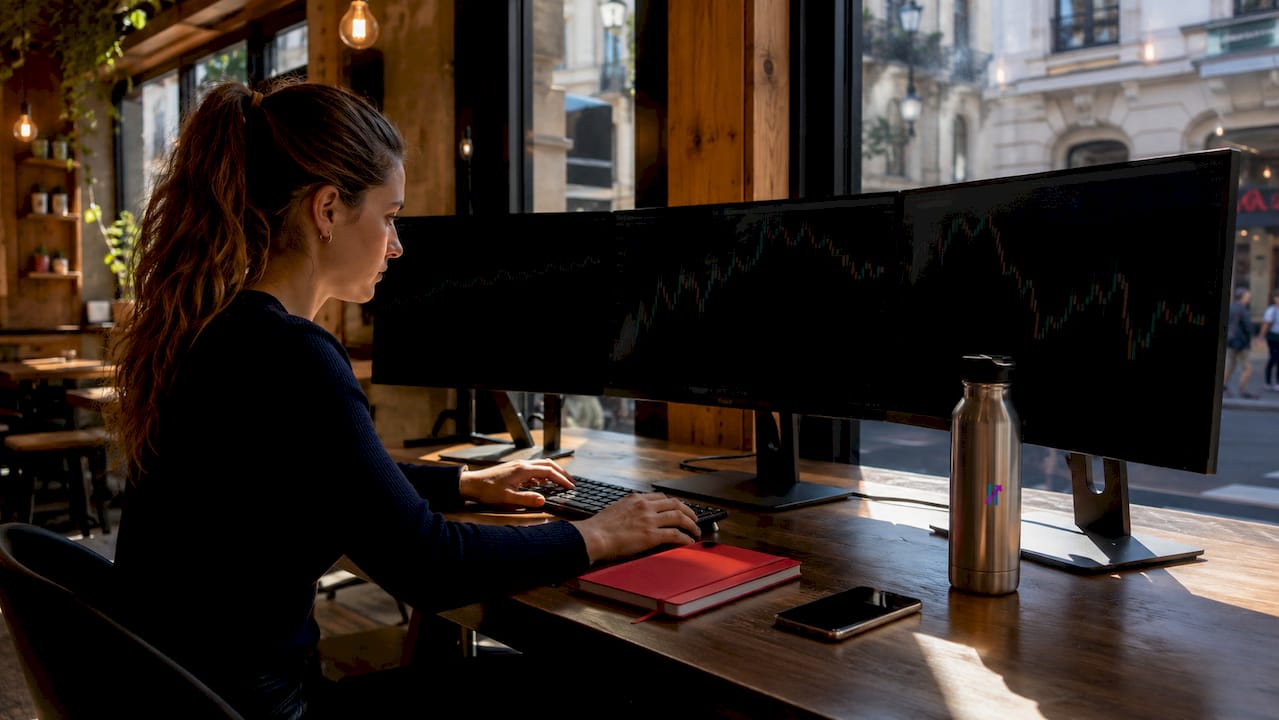
A 3-chart layout using daily, 4-hour, and 1-hour timeframes optimally supports top-down analysis and trading decisions. That configuration works because each timeframe answers a different question: the daily shows trend direction, the 4-hour shows structure, and the 1-hour times the entry. TradingView supports up to 16 charts depending on your subscription tier, but three is the most effective multi-chart configuration for most traders.
Here is how to set up your multi-chart view correctly:
Assign one analytical role per chart. Trend identification goes on the daily. Structure and momentum go on the 4-hour. Entry timing goes on the 1-hour. Never duplicate the same analysis across two charts.
Use crosshair synchronization for spatial coherence. Crosshair sync enhances spatial coherence across multiple charts while keeping timeframes independent for nuanced analysis. Enable it under Chart Settings so your cursor aligns across all panels simultaneously.
Pop out charts for multi-monitor setups. The TradingView desktop app allows you to pop out individual charts onto separate monitors. This feature is built for traders who need their execution chart on one screen and their trend chart on another.
Limit your layout to what you actually use. If you open four charts but only reference two during a session, remove the other two. Dead panels consume screen space and attention.
For traders working across crypto, forex, and stocks, setting up TradingView for multiple markets requires separate layouts per asset class, not one cluttered layout trying to cover everything.
3. What are the best strategies to organize and manage watchlists?
Watchlists perform best as focused filters, not as collections of every symbol you have ever looked at. Segmenting watchlists into core high-conviction, rotation/emerging, and risk/watch groups gives each list a clear purpose and prevents false urgency from low-priority symbols. A full guide to building effective watchlists covers the structural logic behind each category in detail.
The practical rules for watchlist management are straightforward:
Keep session lists short. Aim for 5–10 symbols per active watchlist during a trading session. Longer lists create scanning fatigue and dilute focus.
Annotate every symbol. Add a brief note explaining why the symbol is on the list. “Breakout above resistance, waiting for retest” is more useful than a blank entry you cannot remember adding.
Prune weekly. Regular review and pruning of watchlists eliminates noise and keeps your focus on valid setups. Remove any symbol that no longer meets your criteria.
Never use a watchlist as a dump. If you add every symbol you glance at, the list becomes meaningless. Set a rule: a symbol earns its place only when it meets a specific setup condition.
Pro Tip: Create a “Parking Lot” watchlist for symbols that look interesting but are not ready. Review it once a week and either promote symbols to your active list or delete them.
Organizing watchlists by purpose and annotating them with reasons transforms trading from reactive scanning into structured market analysis.
4. How to use TradingView templates and alert systems to reduce repetitive work
Professional traders maintain a 3-layout approach: scan, execution, and review. Each layout carries its own indicator template tailored to that specific job. The scan layout might use a momentum indicator and a volume filter. The execution layout might show only price action and a single signal tool. Mixing these across one layout forces your brain to filter out irrelevant data under pressure.
Templates reduce cognitive load by delivering a consistent visual environment aligned with specific trading objectives. Here is how to build and maintain them well:
Save indicator templates for each strategy type: trend following, momentum, and volatility each get their own saved stack.
Standardize alert names to include the symbol, timeframe, and signal type. Standardized alert names reduce processing time to under 2 seconds per notification. An alert named “BTCUSD_1H_Long” tells you everything before you open it.
Use the “Make a copy” feature before testing any major layout change. The “Make a copy” feature protects you from losing hours of setup work when experimenting with new configurations.
Delete unused alerts every week. Stale alerts fire at the wrong time and create confusion during live sessions.
Pro Tip: Build your indicator templates around decisions, not information. If an indicator tells you something interesting but does not change your entry or exit, it belongs off the chart.
For traders who want to go further with signal customization, configuring TradingView chart trading signals covers how to tailor indicator outputs for cleaner, faster reads.
5. What common mistakes undermine TradingView workspace clarity?
The most damaging workspace mistakes are not technical errors. They are habit errors that compound over time.
“The trader who builds a complex workspace feels productive. The trader who builds a simple, repeatable workspace actually is productive. Complexity is not a signal of sophistication. It is usually a signal of unresolved uncertainty.”
The most common mistakes that reduce trading efficiency include:
Creating layouts without defined jobs. When every layout looks the same and does the same thing, you gain nothing from having multiple layouts. Each one needs a clear, singular purpose.
Stacking redundant indicators. Using RSI, Stochastic, and CCI simultaneously measures the same thing three ways. Pick one momentum indicator and commit to it.
Ignoring autosave and backup. Ignoring backup features risks hours of configuration loss. TradingView autosaves layouts, but manually saving copies of critical setups adds a layer of protection.
Keeping panels open by default. The news panel, economic calendar, and ideas feed are useful tools. They are not useful during active trade management. Close what you are not using.
Upgrading your subscription before fixing your workflow. More charts and more indicators do not fix a disorganized workspace. Fix the system first, then scale it.
The finance industry increasingly recognizes that structured digital workflows reduce friction and error across professional environments. The same principle applies directly to your TradingView setup.
Key takeaways
A clean, purpose-built TradingView workspace with defined layouts, focused watchlists, and standardized templates is the most direct path to consistent, lower-stress trading.
Point | Details |
One job per layout | Assign each layout a single role: scan, execution, or review. |
Three-chart configuration | Use daily, 4-hour, and 1-hour charts for complete top-down analysis. |
Watchlists as filters | Keep 5–10 symbols per session list and prune weekly to maintain focus. |
Standardize alert names | Include symbol, timeframe, and signal type for instant recognition. |
Copy before experimenting | Use “Make a copy” to protect your working setup before testing changes. |
Why simplicity is the real edge in TradingView
Most traders I have seen struggle with TradingView are not struggling with the platform. They are struggling with the decisions they made when setting it up. They added indicators because they felt uncertain. They created more layouts because they thought more options meant more control. The workspace grew, and so did the hesitation.
The traders who execute well share one trait: their workspace looks almost boring. Three charts, one indicator stack, a short watchlist. They built it that way deliberately, and they defend it against the temptation to add more.
The psychological benefit of a clean workspace is real. When your screen shows only what matters, your brain stops filtering and starts deciding. That shift from filtering to deciding is where speed and confidence come from.
I also think the review layout is the most underused tool in TradingView. Most traders scan and execute. Few review. A dedicated layout for reviewing past trades, with annotations and notes attached to the chart, turns every session into a feedback loop. That loop compounds over time in ways that no indicator can replicate.
Start with the simplest version of your workspace that still covers your trading process. Then add only what proves its value through actual use.
— Steven Hartwell
How Big Move Algo fits into a well-organized TradingView setup
A clean workspace creates the conditions for better signals. Big Move Algo is built to work inside exactly that kind of environment.
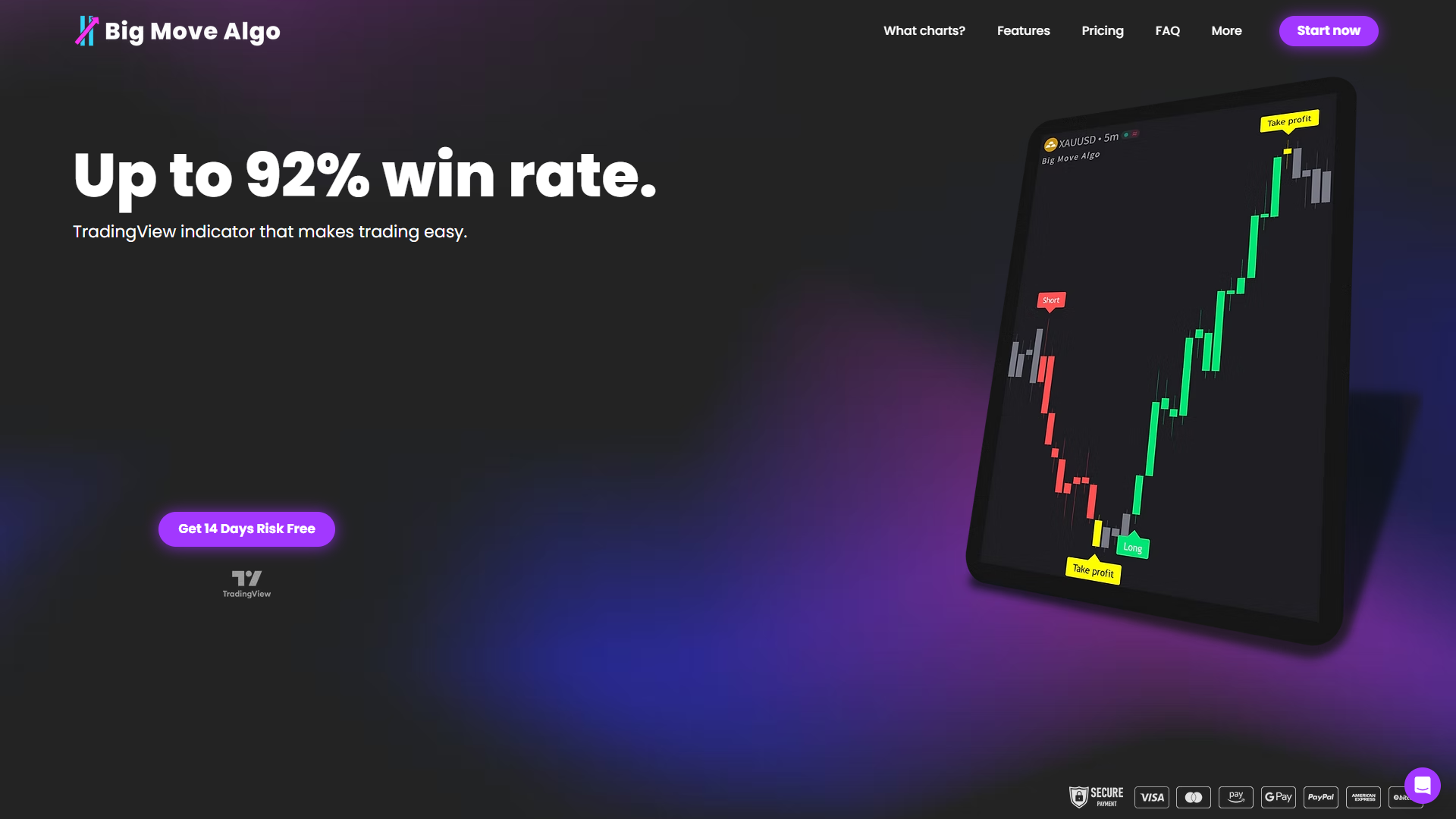
Big Move Algo is a proprietary TradingView indicator that delivers clear Long, Short, and Exit signals in real time across crypto, forex, stocks, indices, and commodities. Its built-in Fake Trend Detector filters out low-quality market conditions so you are not reacting to noise. AUTO Mode requires minimal setup, which means it fits directly into a lean, organized workspace without adding clutter. Traders who want more control can use Manual Mode for additional customization. You can explore the full indicator and subscription plans at Big Move Algo and see how it integrates with the kind of structured TradingView setup covered in this article.
FAQ
How many layouts should I have in TradingView?
Most traders need three layouts: one for scanning, one for execution, and one for reviewing past trades. Each layout should have a single defined purpose.
What is the best multi-chart setup for TradingView?
A 3-chart layout using the daily, 4-hour, and 1-hour timeframes is the most effective configuration for top-down analysis and trade timing.
How do I keep my TradingView watchlists from getting too long?
Limit each active session watchlist to 5–10 symbols, annotate every entry with a reason for inclusion, and prune the list weekly by removing symbols that no longer meet your setup criteria.
What should I include in a TradingView alert name?
Include the symbol, timeframe, and signal type in every alert name. A format like “EURUSD_4H_Short” gives you all the context you need before opening the notification.
How do I protect my TradingView layout from accidental changes?
Use the “Make a copy” feature before testing any new indicator combination or layout change. TradingView autosaves your active layout, but a manual copy protects your working setup from experimental edits.
Recommended
Comments