
200 Connections: How to Keep TradingView Synced Across Devices

Yes, TradingView works across multiple devices at the same time, but there are limits worth knowing before you get comfortable. Each open tab, desktop session, or mobile app counts as a separate connection, and TradingView caps you at 200 of them, closing the oldest one automatically once you cross the line. Whether your layouts, drawings, and indicators actually follow you from one screen to the next depends almost entirely on your autosave and drawing sync settings.
TL;DR:
TradingView caps simultaneous chart connections at 200 across all devices and sessions, automatically closing the oldest when the limit is exceeded.
Autosave and global drawing sync settings determine how quickly changes propagate across devices, with autosave preferred for real-time updates.
The desktop app offers better multi-monitor support and layout persistence than browser or mobile versions, making it ideal for professional traders.
To avoid losing work, users should save layouts manually before switching devices and ensure autosave and sync are enabled, especially during active trading.
Big Move Algo signals and alerts are device-agnostic and persist across unlimited devices when integrated into TradingView layouts with autosave, requiring no extra setup.
Table of Contents
How TradingView Counts Devices and Connections
TradingView doesn’t count “devices” the way you’d expect. It counts connections, and a connection is any active session touching your charts.
A browser tab open to a chart counts as one connection.
Each instance of the desktop app counts as one connection.
A mobile app session counts as one connection too.
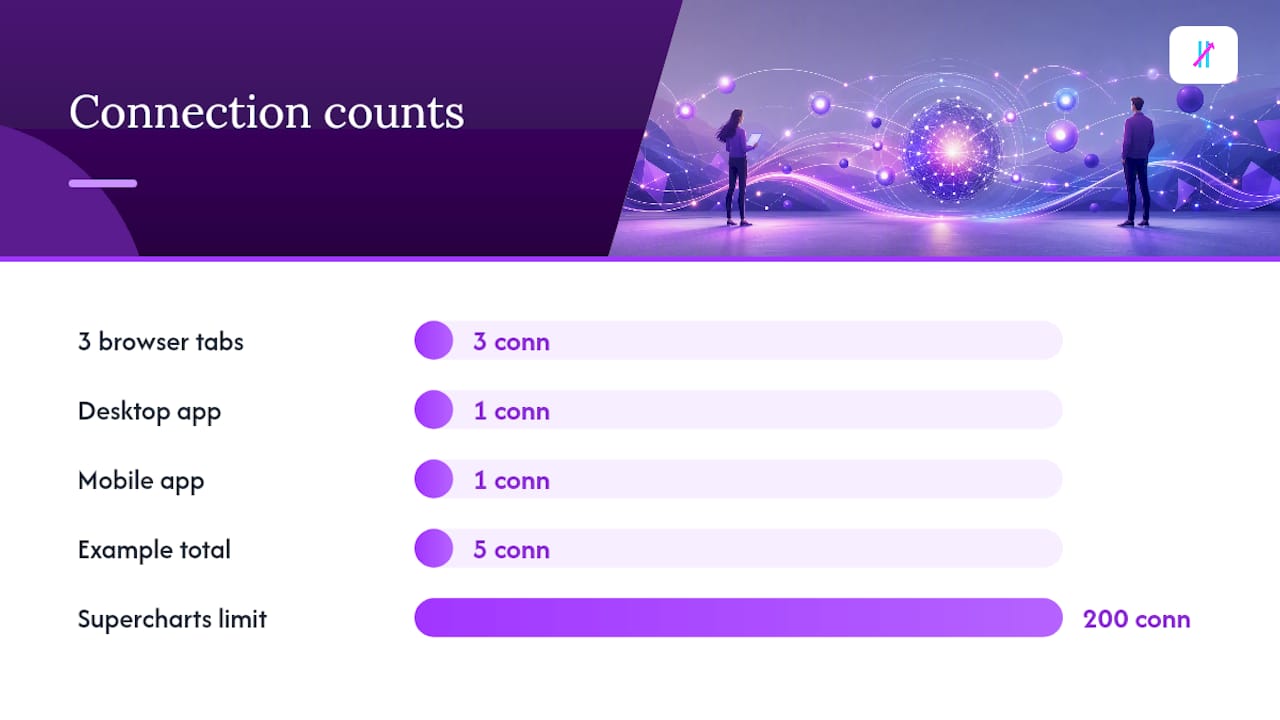
Open three browser tabs, the desktop app, and your phone, and you’ve used five connections, not one. That matters because Supercharts support up to 200 simultaneous chart connections, and once you hit that ceiling, TradingView shuts down the oldest active connection to make room for the new one.
Plan tier plays a role here too. TradingView’s pricing and features page lists per-plan limits on charts per tab, indicators per chart, and active alerts, all of which shape how many resources you can realistically juggle across devices before you start bumping into caps. A free account trying to run five indicator-heavy charts across four tabs will hit friction long before a paid plan does.
What Syncs Between Devices: Layouts, Drawings, and Alerts
Not everything on your chart syncs the same way, and this is where most confusion starts.
Layouts and templates save to your account and become available on any device you log into, but whether changes update instantly or only after you hit save depends on one setting: autosave. Enabling autosave keeps your charts current across browser tabs, desktop, and mobile in near real time. Turn it off, and updates only propagate the next time you manually save.
Drawings add another layer of nuance. They can sync at the layout level or globally, and that choice determines whether a trendline you draw on your laptop shows up instantly on your tablet or stays stuck in that one layout. Global sync plus autosave is the combination that behaves the way most people assume TradingView works by default.
Layouts and templates: saved to your account, autosave controls update speed.
Drawings: sync per layout or globally, depending on your chosen setting.
Indicators and Pine Script studies: settings travel with the layout, but scripts sometimes need re-adding to a fresh chart.
Alerts and watchlists: delivered through the cloud, including push notifications on mobile.
Pro Tip: If a drawing isn’t showing up on your other device, check the sync mode before assuming something’s broken. Nine times out of ten it’s set to layout only, not global.
The 200 Parallel Connections Limit and What Happens When You Hit It
TradingView draws a hard line at 200 simultaneous chart connections, and every open tab or app instance across web, desktop, and mobile counts toward that number. This rarely trips up someone checking charts on a laptop and a phone, but it can catch traders and teams running dozens of tabs across multiple monitors and multiple devices at once.
Here’s the part that actually matters for your workflow: when you exceed the cap, TradingView doesn’t warn you first. It closes your oldest active connection automatically, and if that session had unsaved edits, they can disappear with it.
A few habits keep this from ever becoming a problem:
Close old tabs and sessions you’re no longer actively using instead of letting them pile up.
Consolidate related charts into multi-chart layouts rather than opening a dozen single-chart tabs.
Save your layout before opening a new device or tab, especially during active trading hours.
Desktop, Web, or Mobile: Which One Fits a Multi-Device Setup
The three TradingView clients aren’t interchangeable once you factor in how you actually trade.
The desktop app, available on Windows, macOS, and Linux, restores window positions and multi-monitor arrangements when you reopen it, something browsers don’t reliably reproduce. That persistence is the main reason serious multi-monitor traders lean on desktop instead of juggling browser windows.
The web app matches desktop on features but forgets your window arrangement between sessions, which makes it better suited for quick, temporary access than a permanent trading station.
Desktop: best workspace persistence, ideal for multi-monitor professional setups.
Web browser: full feature parity, weaker session memory.
Mobile app: complete charting and alerts on the go, but limited screen space for complex layouts.
If your setup involves four monitors and a dozen indicators, desktop is the obvious pick. If you’re just glancing at a position between meetings, the browser or mobile app does the job fine.
How to Avoid Overwriting Your Own Work When Switching Devices
Losing a drawing or a layout tweak because you opened your phone before saving on your laptop is one of the most common frustrations traders run into, and it’s almost entirely avoidable.
Turn on autosave in your chart settings so changes propagate automatically wherever it’s supported.
Before switching devices, hit the blue Save icon manually, then close out the original session.
Open the layout on your next device and confirm the drawings and indicators loaded correctly.
Save dated copies of important layouts before making major changes, so you can roll back if something goes wrong.
Avoid opening more tabs than you need. Fewer connections mean less chance of hitting the 200 cap and losing unsaved edits.
Pro Tip: If you collaborate with someone else on the same account, never edit the same layout at the same time. Duplicate it first. Simultaneous edits overwrite each other silently, and there’s no undo for that.
Financial apps outside of trading handle this the same way. Some budgeting tools use autosave-style syncing so changes reflect across devices without manual exports, and the underlying logic is identical: the more automatic the save, the less room for conflict.
Fixing Common Multi-Device Sync Problems
Most sync complaints trace back to one of three things: autosave being off, drawing sync set to the wrong scope, or being logged into different accounts on different devices.
Start there before assuming something’s broken.
Confirm autosave is enabled and drawing sync is set to global if you want changes to appear everywhere.
Double-check you’re logged into the same TradingView account on both devices; this trips up more people than you’d think.
If a session closed unexpectedly, it may have hit the 200-connection cap. Reopen the layout and use the restore prompt if one appears.
Clear your browser cache or update the desktop app if sessions still behave inconsistently after checking settings.
If none of that resolves it, contact TradingView support with a timestamp, a screenshot, and the exact layout name. Vague reports take longer to diagnose than specific ones.
A Practical Multi-Device Routine Worth Adopting
Most sync complaints I see aren’t platform bugs. They’re workflow gaps. Save, close, open, verify. That four-step sequence sounds almost too simple, but it eliminates the vast majority of overwritten drawings and missing alerts people blame on TradingView itself.
For active traders, desktop plus one mobile session tends to strike the right balance: desktop for the heavy analysis, mobile for reacting when you’re away from the desk. Big Move Algo’s signals and alerts live inside your TradingView account, so they follow the same sync rules as everything else. Save with autosave on, and they show up instantly on whichever device you open next.
— Steven Hartwell
Trade Across Every Device Without Missing a Signal
Switching between your laptop, your phone, and a second monitor shouldn’t mean second-guessing whether your setup carried over. Big Move Algo runs directly inside TradingView and works across unlimited devices, so once you’re set up, your Long, Short, and Exit signals follow your synced layout wherever you open it next.
Access is instant after purchase. Once your settings are saved to your TradingView account, they persist the same way any other layout or alert does, no separate setup required on each device. Plans run from $55 a month for Version 2 up to $79 a month for Version 3 Plus, with annual pricing available on all tiers. If you ever need to move the indicator to a different TradingView login, the account change guide walks through it in a few steps. Check current plans and get started on the Big Move Algo landing page.
FAQ
How Many Devices Can Be Connected to TradingView?
There’s no fixed device count, but there is a connection cap. TradingView allows up to 200 simultaneous chart connections across web, desktop, and mobile combined, with each tab or app instance counted separately.
Can Two People Share a TradingView Account?
Sharing one login across two people works technically, but it counts against the same connection cap and can cause layout overwrites if both people edit simultaneously. Using separate layout copies avoids most conflicts if an account is shared.
Can I Open TradingView on Multiple Monitors?
Yes, and the desktop app handles this better than the browser because it restores window positions and monitor arrangements when reopened. Browser-based multi-monitor setups work but won’t reliably remember your layout between sessions.
Does Big Move Algo Work Across My TradingView Devices?
Yes. Big Move Algo runs inside your TradingView account, so its signals, alerts, and settings follow the same sync behavior as any other indicator, appearing on any device once your layout is saved with autosave enabled.
Recommended
Comments