Auto Mode on TradingView: Your Options Compared

TradingView has no single “auto mode” switch that trades for you. What traders mean by the phrase is one of three things: an indicator that sets itself up with minimal configuration, alerts that notify you when a condition hits, or a chain that sends those alerts to a broker. For traders who want clear Long, Short and Exit signals without tuning a dozen inputs, Big Move Algo’s AUTO Mode is the shortest path: you load the indicator, start in AUTO and read the signals. Below we compare it with the other routes, show how to set each up and list the risks to check first.
TL;DR
- TradingView does not place trades itself. Strategies only simulate orders and alerts only notify, so real execution always needs a broker connection or an outside service.
- Big Move Algo’s AUTO Mode is built for a fast start with minimal setup. Manual Mode adds customization once you want it.
- Big Move Algo plans run $55 per month (Version 2), $64 per month (Version 3) or $79 per month (Version 3 Plus), with lower effective rates on annual billing.
- Before you trust any signal, check for repainting, set alerts to fire on bar close and test on the markets you actually trade.
Table of Contents
- What “auto mode” really means on TradingView
- The options compared
- Big Move Algo AUTO Mode: what you get
- How to use AUTO Mode, step by step
- What TradingView itself costs
- Big Move Algo pricing
- Automatic execution: how the bridge works
- Cross-market signals: using one tool on many markets
- Risks to check with any auto tool
- Why we recommend starting with AUTO Mode
- Start with Big Move Algo
- FAQ
- Sources
What “auto mode” really means on TradingView
Search for the phrase and you will mostly find autosave guides and script libraries. None of them describes a native feature, because TradingView does not have one. The platform’s own help position, as quoted in a 2026 breakdown by LivePropFirmTrading, is that it does not process your trades and acts as an interface only. A strategy is limited to backtesting, and an alert notifies without executing.
That leaves three practical meanings of “auto”:
- Auto-configured indicator. You add it to a chart and it produces signals with little or no tuning. This is what Big Move Algo’s AUTO Mode does.
- Automatic alerts. The indicator or strategy fires a TradingView alert when its condition is met, and you decide what to do.
- Automatic execution. The alert is sent as a webhook (an automated message TradingView sends to a web address you provide) to a receiver that places an order with your broker.
The chain has four separate parts, as Pineify’s automation guide lays out: the script calculates a condition, the alert delivers the message, an execution receiver validates it and requests an order, and the broker accepts, rejects or fills it. A delivered webhook is not proof of a fill. Keep that in mind when comparing options, because each option covers a different part of the chain.
The options compared
| Option | What it does | Setup effort | Cost to you |
|---|---|---|---|
| Big Move Algo (AUTO Mode) | Long, Short and Exit signals on crypto, forex, stocks, indices and commodities, with a Fake Trend Detector | Minimal in AUTO Mode, more control in Manual Mode | $55, $64 or $79 per month, depending on version |
| Free or built-in TradingView tools plus your own alerts | Built-in indicators and community scripts, alerts you configure yourself | You choose, build and test the logic | TradingView plan only |
| Webhook bridge services (such as AutoView) | Receive a TradingView alert and send an order to a broker or exchange | Alert message syntax, API keys, broker permissions | Separate subscription on top of TradingView |
| Other signal indicator vendors (ChartPrime, AlgoAlpha, LuxAlgo, Elite Signals) | Indicator suites for TradingView | Varies by product | Varies by product |
The first row is the one we recommend for most readers of this page, and the rest of the article explains why. The key difference is where the work lands. With Big Move Algo, the signal logic, the filtering of poor conditions and the alert delivery are already built. With the do-it-yourself route you are the one writing, debugging and validating all of that before you risk a dollar.
Big Move Algo AUTO Mode: what you get
Big Move Algo is a proprietary TradingView indicator that analyzes markets in real time and prints Long, Short and Exit signals. It is designed to cut guesswork, emotional decisions and the pile of inputs that overwhelms many traders.
AUTO Mode needs minimal setup. It suits beginners and anyone who wants to start reading signals the same day. Manual Mode is for experienced traders who want more customization. You can begin in AUTO and move to Manual later without changing tools.
Fake Trend Detector. The indicator includes a built-in Fake Trend Detector, designed to filter out low-quality or misleading market conditions where trading may not be recommended. For a trader who struggles with overtrading or chasing every wiggle, a tool that says “stand aside” is as useful as one that says “go.”
Cross-market coverage. It works across crypto, forex, stocks, indices and commodities. That matters if you trade more than one asset class, and we cover why below.
Alerts and integrations. Big Move Algo delivers alerts to multiple platforms and allows integration with automated trading platforms. It runs on unlimited devices, includes free updates, and access is instant after purchase. Our indicator is designed not to repaint.
How to use AUTO Mode, step by step
Here is the routine from first load to first alert, with where each step usually goes wrong.
- Subscribe and get access. Pick a plan on our pricing page. Payment goes through Stripe and access is instant. If you are on an earlier version, the quick installation guide for the previous version walks through adding it.
- Add the indicator to a chart. Open the chart, open the Indicators menu and add Big Move Algo from your invite-only scripts. Where it goes wrong: loading it on a symbol you do not understand. Start with one market you already follow.
- Start in AUTO Mode. Leave the defaults. The point of AUTO is to see how the signals behave before you change anything. Resist the urge to tweak inputs after one losing trade.
- Read Long, Short and Exit. Treat Exit as seriously as entry. Many losses come from holding a position after the reason for it is gone.
- Respect the Fake Trend Detector. When it flags poor conditions, the designed response is to sit out. Skipping trades is part of the method.
- Create alerts on bar close. In TradingView’s alert dialog, choose the indicator as the condition and set the trigger to fire once the bar closes. The reason is covered in the repainting section below. Our guide on bar close alerts explains the setting in detail.
- Paper trade first. Run the signals on a demo account for a few weeks. Our piece on alerts versus automation suggests a 2 to 4 week test before you decide how much to automate.
- Move to Manual Mode only when you know why. Change one setting at a time and note the result.
One account detail: webhook alerts on TradingView require two-factor authentication, according to Find My Moat’s 2026 review. Turn it on before you set up any webhook.
What TradingView itself costs
Any of these routes needs a TradingView plan that allows the alerts you plan to use. On annual billing, Find My Moat lists (prices checked September 24, 2026) Basic at $0 with 3 price alerts and no technical alerts, Essential at $155.40 per year with 20 price and 20 technical alerts, Plus at $359.40 per year with 100 of each, Premium at $719.40 per year with 400 of each, and Ultimate at $2,399.40 per year with 1,000 of each. TradingView changes plans and promotions, so confirm on its pricing page before you buy.
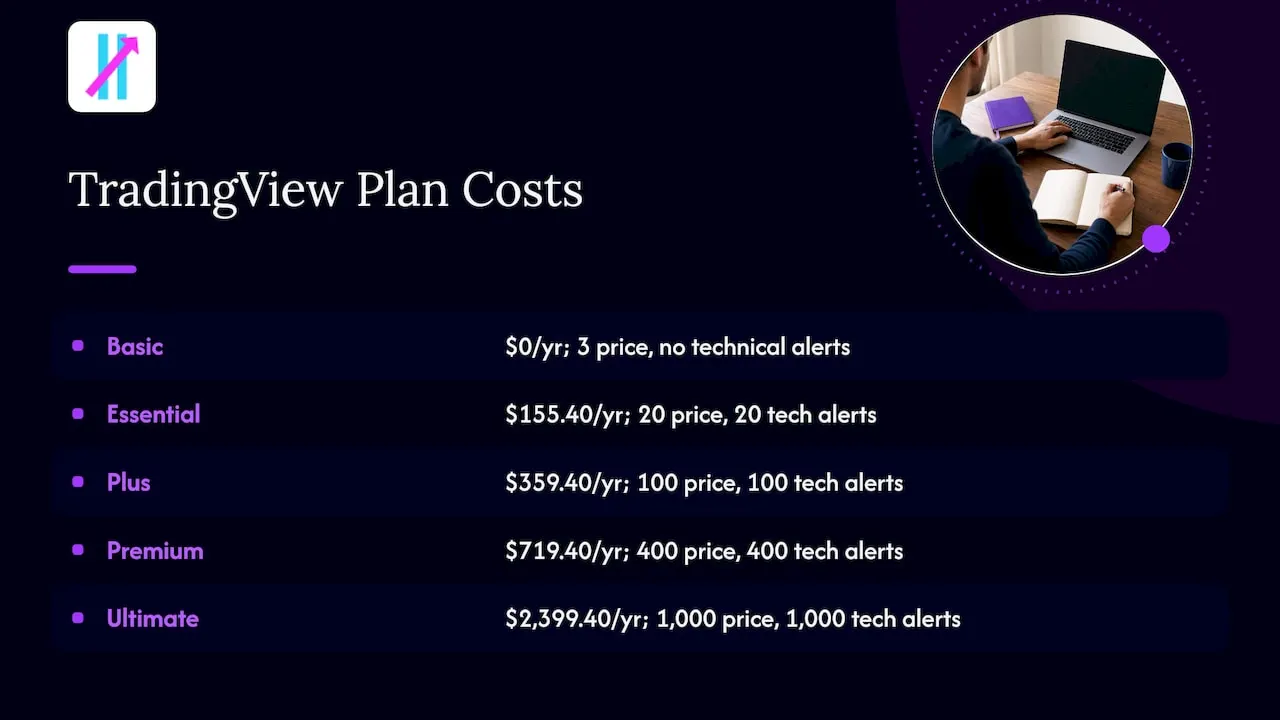
The practical point: indicator alerts are technical alerts, so a free Basic account will not carry them. If you run signals on several symbols and timeframes, count the alerts you need before choosing a tier.
Big Move Algo pricing
| Plan | Monthly | Yearly |
|---|---|---|
| Version 2 | $55 | $660 |
| Version 3 | $64 | $768 |
| Version 3 Plus | $79 | $948 |
These are the prices published on our site. They are billed as a subscription through Stripe, and every plan includes free updates and instant access.
Automatic execution: how the bridge works
If you want orders placed without you clicking, you need the second half of the system. FinancialTechWiz’s Pine Script guide notes that Pine Script runs in a sandbox on TradingView’s servers and cannot send orders to a broker by itself. Live automation means either executing manually through a connected broker or routing the alert’s webhook through an execution service. ForexForStarters contrasts this with MetaTrader and cTrader, where robots run inside the platform: TradingView’s setup is more flexible but more involved, because signal generation and order placement live in separate systems. If you want to see how platforms that run robots internally approach it, AI trading insights from a crypto wallet app show another take on the topic.
For Big Move Algo users, the signal side is done. The remaining work is the route from alert to broker, and we have written guides for each part of it:
- Alert routing without a developer for retail traders who do not code.
- Webhooks to brokers and payloads for those who want the message format.
- TradingView alerts to OANDA, starting on a demo account.
- Sending alerts to a bot without duplicate trades, which addresses a common failure.
- Setting up live execution once you are ready.
Cross-market signals: using one tool on many markets
The other phrase traders pair with this topic is cross-market signals. It has two meanings. The first is using one indicator on several asset classes, which Big Move Algo supports across crypto, forex, stocks, indices and commodities. The second is intermarket analysis, which reads relationships between asset classes. Investopedia explains that rising commodity prices alongside falling bond prices can point to a probable stock-market reversal, which is confirmed when stocks break support after bonds have already fallen. Equiti’s education page gives a practical case: a bullish MACD crossover on USD/JPY at the same time as a bearish crossover on gold fits the usual negative relationship between the dollar and gold, which supports a long USD/JPY and short gold view.
You can use a signal tool in the same spirit. Open a second chart of a related market and see whether its Big Move Algo signal agrees with the first. Agreement is a reason for more confidence. Disagreement is a reason to wait. Either way, you are using the signal as a structured input, not a coin flip.
Risks to check with any auto tool
Repainting. An indicator repaints when it moves, adds or removes a signal on a bar that has already closed. Quantzee’s guide recommends stepping through Bar Replay, watching a live chart for a session and setting alerts to Once Per Bar Close, which it calls the most useful setting for anyone acting on alerts. Bar close alerts trade a little speed for signals that match the finished chart.
Alert delay and fills. A delivered alert is not a filled order. The broker can reject or slip it, so compare your logged alerts with your actual fills during the demo stage.
Market fit. Run the signals on the markets and timeframes you actually trade. A day trader on five-minute crypto charts and a swing trader on daily stocks will see different behavior, and your test should reflect your own style.
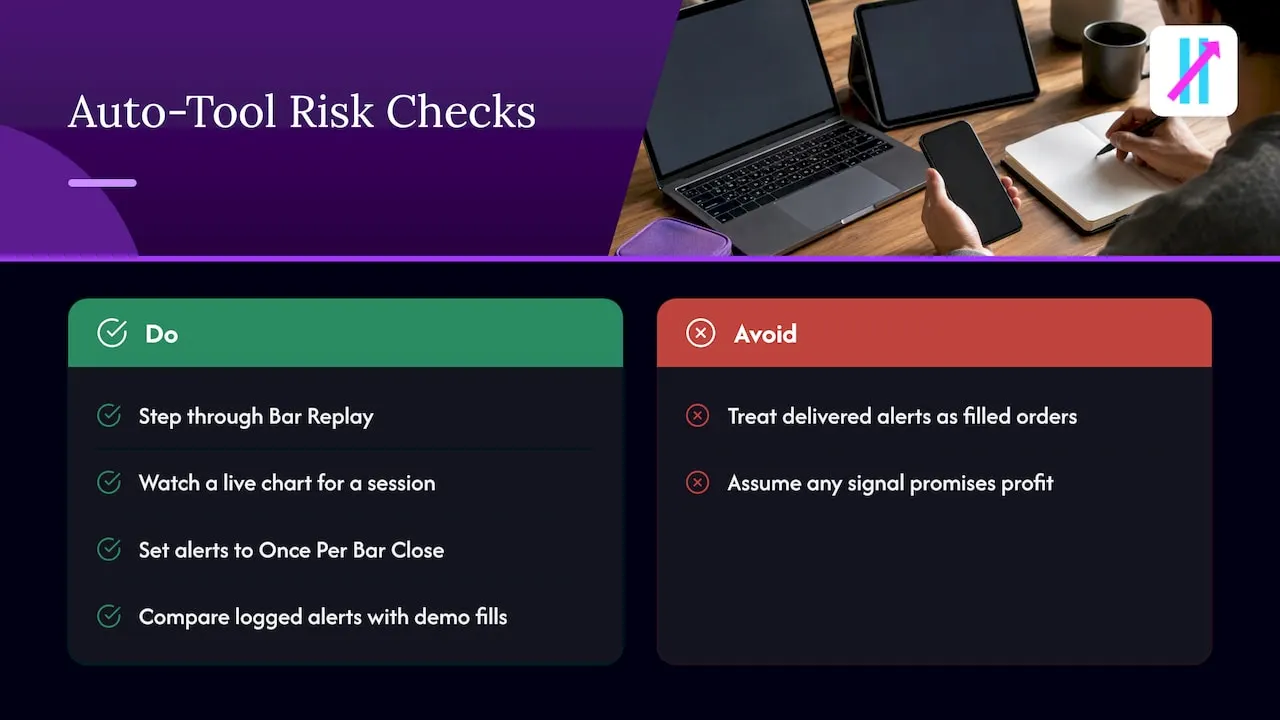
Position size. No signal is a promise of profit. Size each trade so that a string of losses does not threaten your account, and for tax or regulatory questions on automated trading, speak with a licensed U.S. adviser or the relevant regulator.
Why we recommend starting with AUTO Mode
Most traders do not fail for lack of indicators. They fail because they have too many inputs, too many opinions and too little structure, so every decision gets made in the moment, under emotion.
We built Big Move Algo to take that weight off. AUTO Mode exists so a new user can load the indicator and see clear Long, Short and Exit signals without a week of setup. The Fake Trend Detector exists so that the tool also tells you when conditions are poor, which is where a lot of retail accounts bleed.
When you grow, Manual Mode is there, and free updates mean the tool grows with you. That is our view: a structured, simple signal beats a complicated one you do not trust.
Steven Hartwell
Start with Big Move Algo
If you want clear signals on TradingView without building the logic yourself, Big Move Algo gives you AUTO Mode for a quick start, Manual Mode for control, a Fake Trend Detector, alerts to multiple platforms, unlimited devices and free updates. Plans start at $55 per month for Version 2, with Version 3 at $64 and Version 3 Plus at $79, and annual billing is available. See the options on our plans page.
FAQ
Does TradingView have an auto mode?
No. TradingView strategies only simulate orders and alerts only notify, as the TradingView position quoted by LivePropFirmTrading makes clear. “Auto mode” is a name individual indicators give to their own setup, as Big Move Algo does with AUTO Mode.
How do I use Big Move Algo’s AUTO Mode?
Add the indicator to a chart and leave it in AUTO Mode with the default settings. Read the Long, Short and Exit signals, respect the Fake Trend Detector and set alerts to trigger on bar close. Run it on a demo account first.
Can I automate trades from Big Move Algo signals?
Big Move Algo delivers alerts to multiple platforms and allows integration with automated trading platforms. Those platforms receive the alert and handle the order with your broker. Our guide to connecting TradingView to a bot covers the three components involved.
Do I need a paid TradingView plan?
For indicator alerts, yes. Find My Moat’s 2026 review shows the free Basic plan has no technical alerts, and paid plans start at Essential. Webhook alerts also require two-factor authentication.
Can I use one indicator across crypto, forex and stocks?
Big Move Algo works across crypto, forex, stocks, indices and commodities. Test it on each market and timeframe you trade, since each behaves differently.
Sources
- Can TradingView Place Trades Itself? Yes, With One Catch (LivePropFirmTrading)
- Automated Trading in TradingView (Pineify)
- Pine Script in TradingView: Beginner’s Guide (FinancialTechWiz)
- TradingView Automation: Alerts, Webhooks and Auto-Trading (ForexForStarters)
- TradingView Review, Pricing, and Features (Find My Moat)
- Intermarket Relationships Definition (Investopedia)
- Cross-Market Analysis: How Does It Work in Trading? (Equiti)
- Non-Repainting TradingView Indicators (Quantzee)
- AI trading insights (Ulys)